
 Language
Related extensions:
Video subtitles
 Maybe you have sometimes wondered how people add subtitles to their videos or movies? Maybe you have got your own family home video, or some video from your vacation and would love to add your own subtitles to it, but simply don't know how.
There is lots of reason why you would like to add subtitles to your own videos. To describe what's going on the screen, to add some personal commentaries to situations, people or places recorded on the video, or to simply add text to unrecognizable speech, because the background sound is too loud and nothing else is heard clearly.
Creating your own subtitles is easier than you have thought, and in this tutorial we will describe the general basics needed, to do it.
How do I create new subtitles?
First you will need application that is able to create subtitles. We recommend program called Subtitle Workshop, for it's easy to use, great for beginners, it supports many formats for saving subtitles and most important, its completely free.
About subtitles
Subtitles are generally very small files in plain text file format. Those files contain entries, that basically tell the media player, which text that should be visible between certain time stamps. There are many different subtitle formats, but all of them have same principle.
Creating subtitles
To create subtitles it's best to directly work with the video for what the subtitles are made. Once Subtitle Workshop is launched you can add preview of your video with Movie → Open ... (Ctrl + P) menu option. A video preview will appear, with time slider and bar of command elements as you can see on the screenshot below.
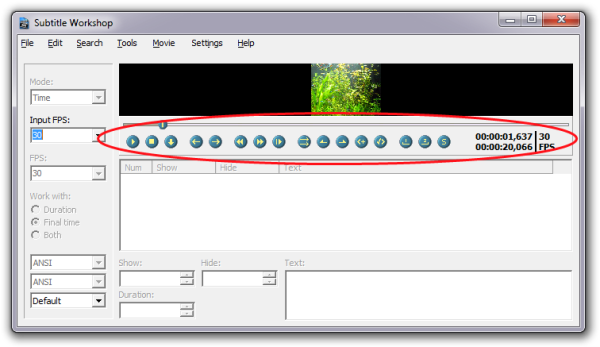
Subtitle Workshop video preview screenshot.
This feature is especially handy, because you can playback your video with subtitles and see how it will look like, and if needed tweak the times for each subtitles.
There is just that minor annoying thing, that once you load the movie, it automatically starts to play. So just simply re-roll it back, before you start adding subtitle entries.
You can add subtitle entries with File → New subtitle... (Ctrl + N) menu option. That will create "blank" subtitle entry, in which you have to manually define time stamps. However, there is a more convenient way, how to create subtitles, which is described in next paragraph.
Adding subtitles
To easily add subtitles for your video, simply select starting point for your subtitle on the time slider and click on the Start Subtitle (Alt + Z) button. Then proceed to select the end point for your subtitle entry and click on the End Subtitle (Alt + X) button . When you confirm the end point, a new subtitle entry will be automatically created, with box for text that should be visible on screen between the start and end points.
We have prepared some screenshots, so you can see, how easy adding subtitles in Subtitle Workshop is. It's really not something difficult and once you grasp it, you will be able to quickly add as many subtitle entries as you want.
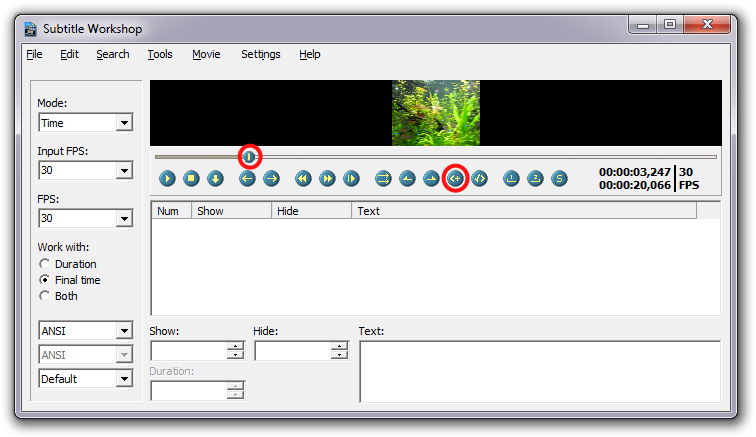
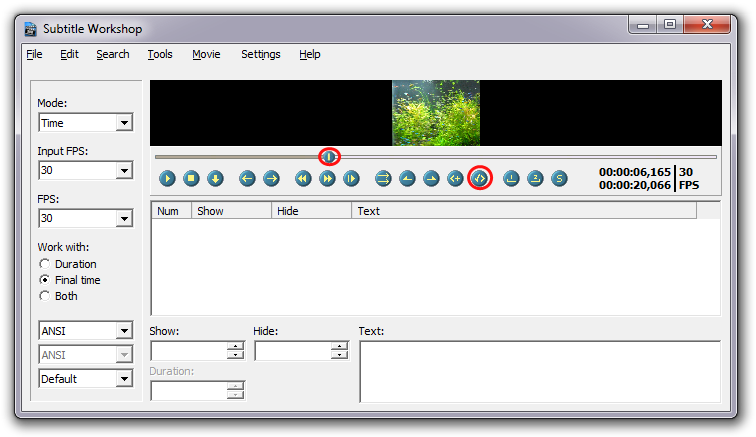
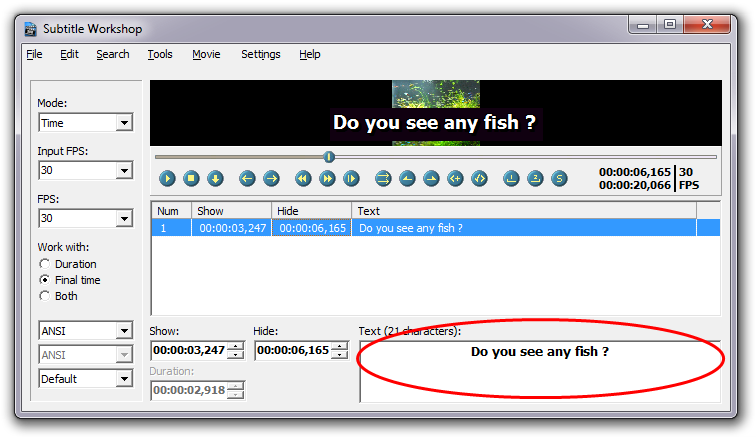
Creating subtitle entries in Subtitle Workshop. Click on images to enlarge them.
Now just repeat this step as many times as you need to create subtitles for your video. Do not be afraid to experiment. You can always start a new, edit subtitles, or delete any entries, until you are fully satisfied with your work.
Saving subtitles
After you are done with adding and tweaking entries to your subtitles, it's time to save subtitles. Subtitle Workshop is capable of saving subtitles in many formats, however for best compatibility across media players, you should use SRT (SubRip) or SUB (DVDSubtitle) file formats.
What you should keep in mind, is that generally subtitle file name should have the same file name as the corresponding video file. That makes sure, that when the video is opened in media player, the subtitles are automatically loaded as well. Should the name be different, the subtitles would need to be manually loaded to the player.
Converting subtitles
Should you ever need your subtitles in another file format you can convert subtitles in Subtitle Workshop. Simply open subtitles in the program (File → Load subtitle... Ctrl + O) and save subtitles to another file format (File → Save as... Shift + Ctrl + S).
And that's it
Now you should be able to create your own subtitles and share them together with your video.