
 Language
Guide: How to boot safely in Windows 8
If you have problems with booting or freezing Microsoft Windows, you can use the F8 key before Windows start booting and start it into Safe Mode that allows you to try to repair problems in the system. Unfortunately, this useful shortcut is disabled in last Microsoft Windows 8.
Safe Mode is diagnostic and repairing mode of operating system, that allows users to repair problems with system files, applications, drivers, diagnosing hardware problems, or remove malicious software etc. System will boot up only with basic hardware drivers and minimal system settings.
Boot into Safe Mode through Metro Charms Menu
Open Metro in Windows 8 and go to the Settings in Charms Menu (also Win key + I shortcut) → Click on change PC settings.
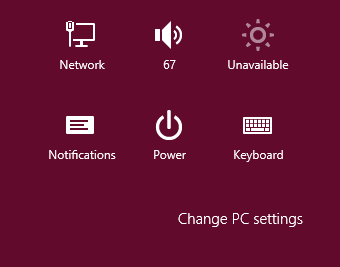
Charms Menu
Select Update & Recovery option → Recovery → Advanced Startup and Click on Restart Now.
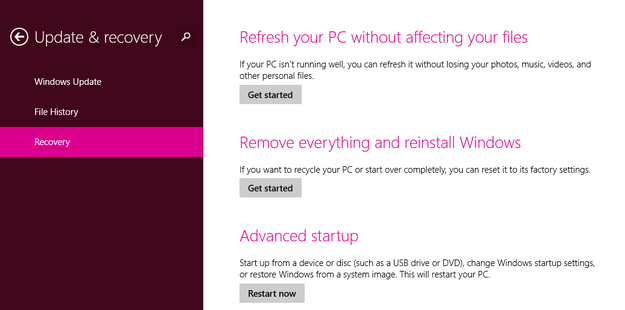
Windows 8 Recovery menu
Select Troubleshoot button.

Select Advanced options.

Select Start-Up Settings.
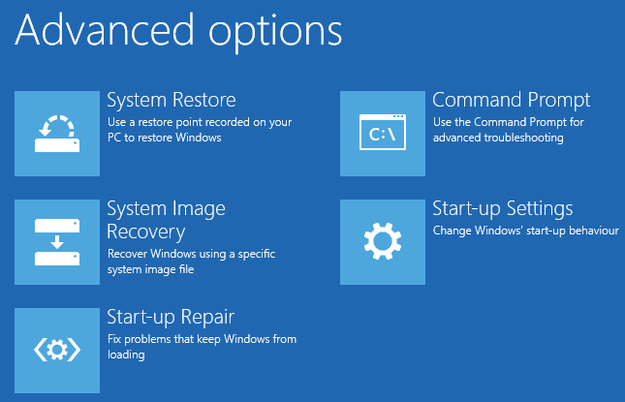
Windows 8 advanced options
Click on Restart button.
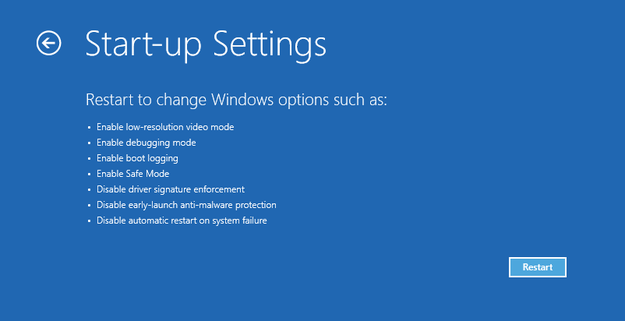
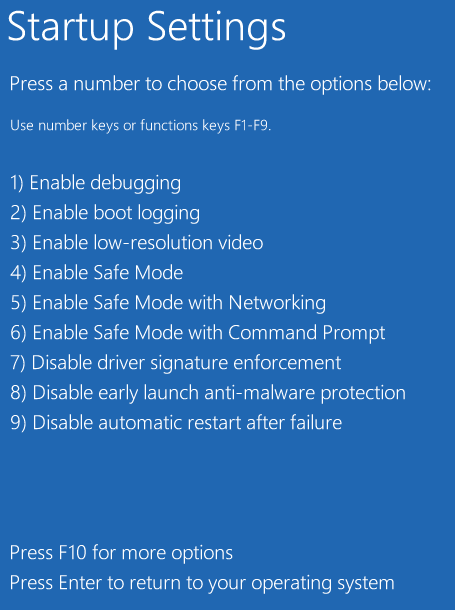
Windows 8 Start-Up settings
Now you can select number 4 from the boot menu and start Windows 8 into the Safe Mode.
Boot to Safe Mode with System Configuration utility
Start System Configuration utility → start type msconfig in Metro, or Win key + R in the desktop and type msconfig to Open: box → Click on OK button.
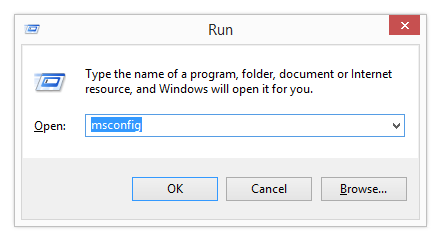
Windows 8 Run menu
Select Boot tab → Check the Safe boot box in Boot options → click on Apply and OK buttons.
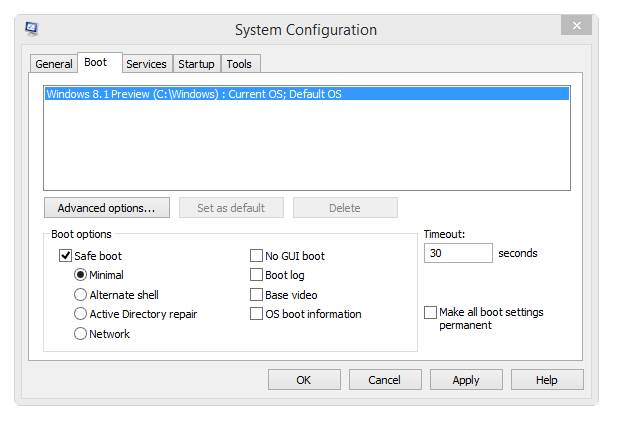
Windows 8 System Configuration
Restart the system and wait till the Windows boot up into the Safe Mode. After you finish your session in the Safe Mode, open the System Configuration utility and uncheck the Safe boot box. Click on Apply and OK buttons and restart the system.