
 Language
Related extensions:
 FLAC (Free Lossless Audio Codec) is one of the most popular audio file formats, because music encoded by it, is in same quality as original audio grabbed from the CD, but with size reduced to 50-60% of the original. Flac is very popular in Windows, where many media players support FLAC, including default Windows Media Player with FLAC plugin.
There are few media players for Mac OS X that are able to play .flac files. However most of them are not comfortable for the common Mac user, used to iTunes.
By default, iTunes doesn't support playback of .flac audio files and no third party FLAC plugin exists that works properly with all types of FLAC file format. The easiest way how to play .flac file on Mac, is convert it to one of iTunes supported audio formats (AAC, AIF, Apple Lossless, MP3 and WAV).
AAC audio file format
The standard audio format used on Mac, as well as Apple portable devices is AAC. AAC is not similar audio codec to FLAC, because it uses lossy audio compression, although AAC in higher bitrates has very good sound quality. To convert FLAC to AAC audio, you will need first to install some good audio converter.
In this article we will use Max, an open source audio converter for Mac, that is able to create high quality audio files in various formats from audio CDs.
How to convert FLAC to AAC with Max audio converter
-
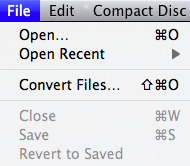
Run the Max application and once launched, click on the File → Convert Files... program menu option.
-
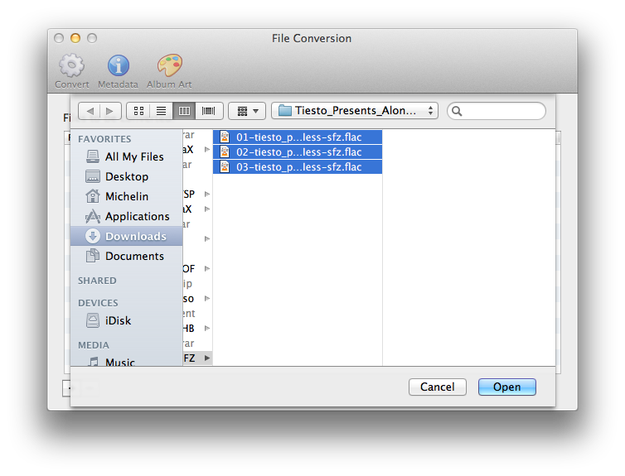
Max launches a selection window, where audio files or directory with audio files for conversion can be selected. After the files are selected, click on the Open button.
-
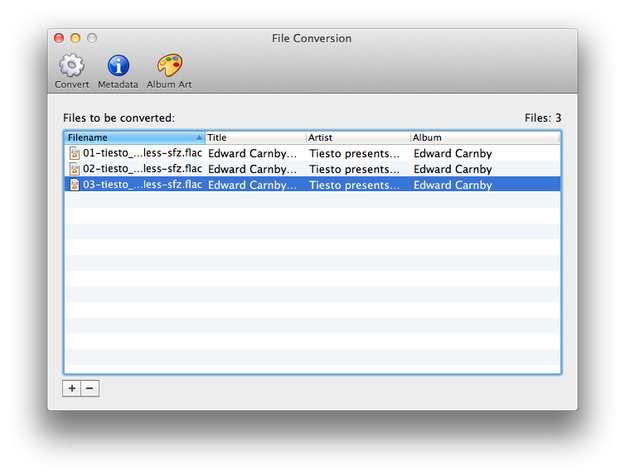
When ready, Click on the Convert button.
-
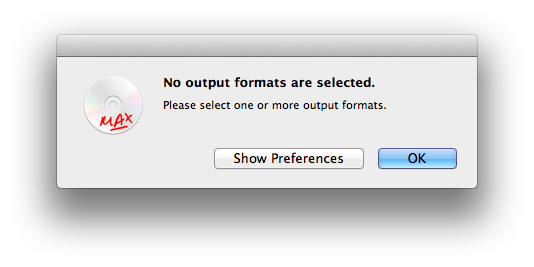
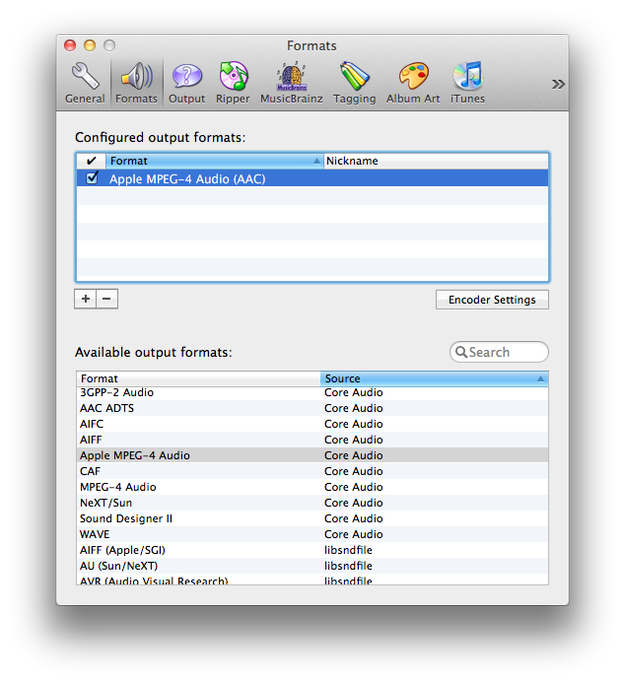
Should no output format be set, Max will show a warning window. If that happens, click on Show Preferences and set it. In our case, the output format is Apple MPEG-4 Audio AAC. Don't forget to check the format box next to codec!
-
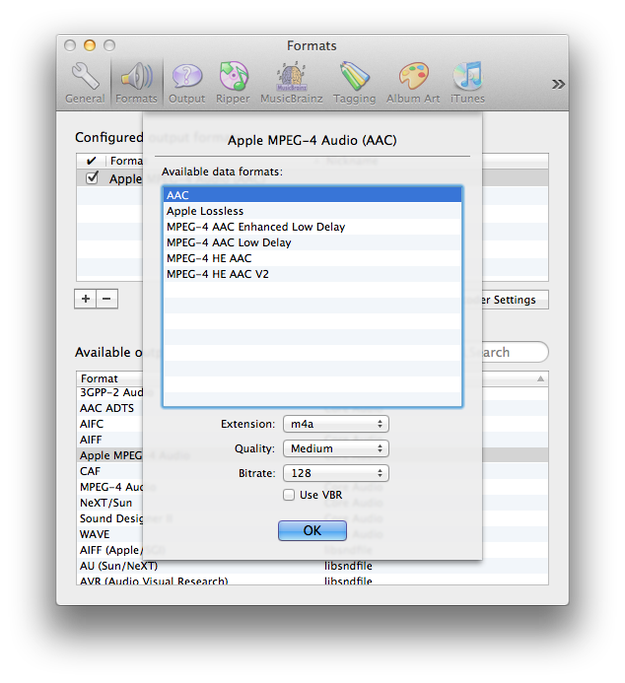
If you want to modify the quality of converted audio files, click on the Encoder Settings button.
-
After you have set the output codec and quality settings, close the settings window and click again on the Convert button.
-
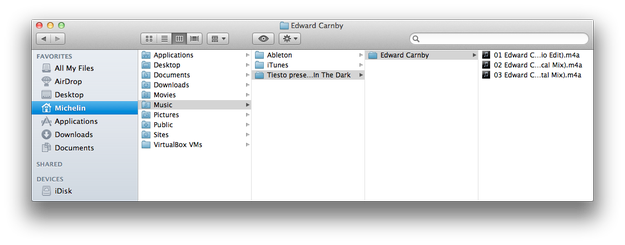
Wait until the convert process is finished. By default, Max saves new audio files to User/Music folder. Do not be surprised that the final audio files have m4a file extension. It is because on Mac m4a media container is used for AAC audio files, while in Windows it uses aac file extension.
If you set the output format, Max won't show the warning window. To set a new codec, audio format or modify quality setting, click on the Max option in task bar and select Preferences menu.