
 Language
Related extensions:
How to work and extract PowerISO's DAA format
 When downloading disk images from internet, you can sometimes get a file with DAA file extension and if you have never heard about PowerISO, you will probably wonder, what the hell it is.
DAA (Direct Access Archives) is the proprietary file format used by PowerISO, a powerful image processing software that is able to open, extract, create, edit, compress, encrypt, split and convert ISO files, and is is also capable of mounting disk images with internal virtual drive. DAA format is the default format of PowerISO and is especially useful for very large images, because of its great compression rate.
The problem is, that while PowerISO is "free", it can only work with files no larger then 300 megabytes. In order to work with larger files (which are more common on internet), you have to register (aka buy) PoweISO. If your .daa file is smaller than 300 MB, then just download PowerISO from its website and you will be fine, but if your file is larger and you do not want to invest money for just one archive you need to extract, follow our tutorial about learn How to extract DAA disk images without PowerISO.
1. Convert DAA to ISO
First we will need to convert .daa archive to more common ISO format which is supported by plethora of disk imaging and file archiving software. There is a handy free tool available on web called DAA2ISO created by Luigi Auriemma.
DAA2ISO is a simple program capable of converting DAA archives to ISOs, which doesn't require any installation. Simply download it from its website and extract the archive and DAA2ISO is ready.
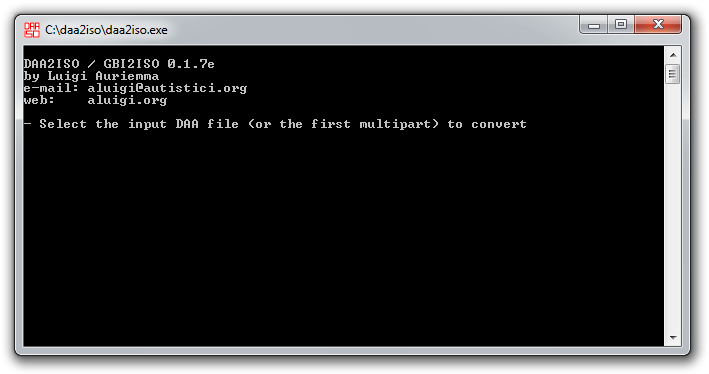
When you launch the program, you will be instantly prompted to select the input .daa image for the conversion. So browse through your files and select the .daa file you wan to convert to ISO format.
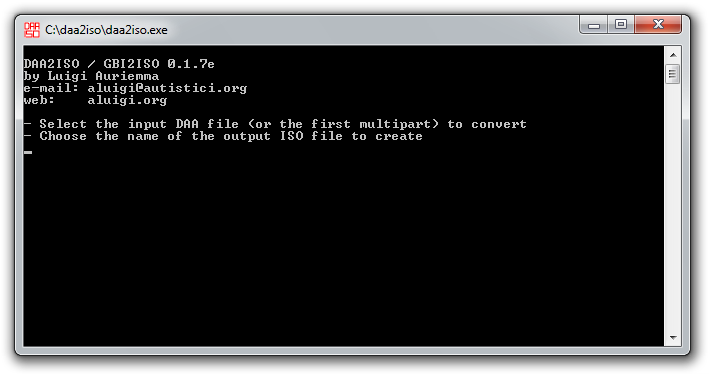
After the source .daa file is selected, you will be again prompted to choose the destination folder and name of the new .iso image.
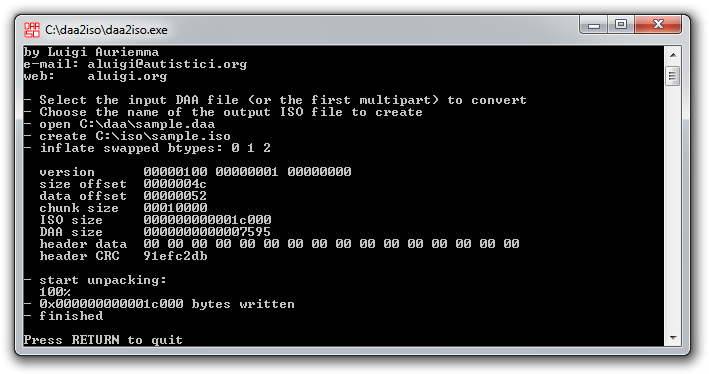
Once both input and output is set, DAA2ISO will proceed with the conversion and create ISO image from your DAA image. If there is any kind of error in the process, it means your DAA archive is either corrupt, or it is not a file in PowerISO's DAA format. If everything goes smooth, your new ISO image will be located in the output folder you specified in previous step.
2. Extract or burn the ISO image file
Now that you have ISO instead DAA image, you can open it and extract the content with file archiver that has ISO support, such as 7-zip, or WinRAR.
Alternatively, you can burn the ISO image file on CD or DVD using burning software or mount ISO file by mounting utilities such as Daemon Tools.