
 Language
Related extensions:
 Apple iPhone supports customized ringtones, which can be created in iTunes completely free.
iPhone ringtones are stored in the same M4A MPEG-4 audio format as songs, but have two differences. First difference is file extension M4R that replaces the standard M4A. And second, the maximal length of ringtone must be about 30 second.
Ringtones and sound notifications in Apple iOS 5
From iPhone iOS 5 you can also customize your iPhone with own ringtones as well as with your own notification tones that means SMS, e-mail, voicemail sounds and calendar alerts.
How to create iPhone ringtones in iTunes
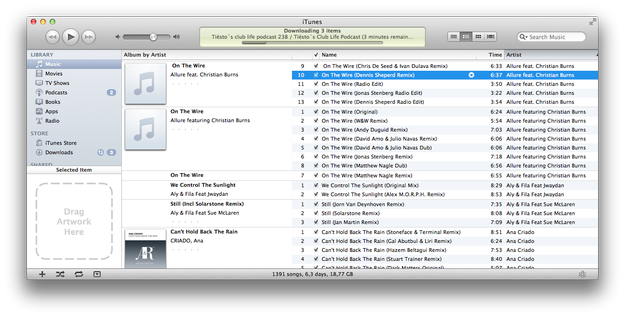
- Open iTunes and select song that you want use as a ringtone from your Music library.
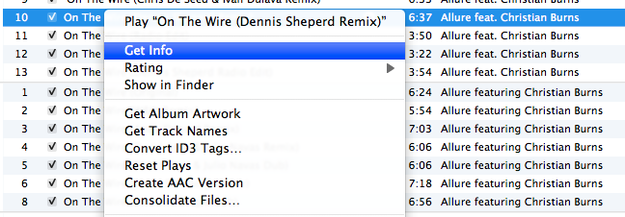
- Right-click and select Get Info option.
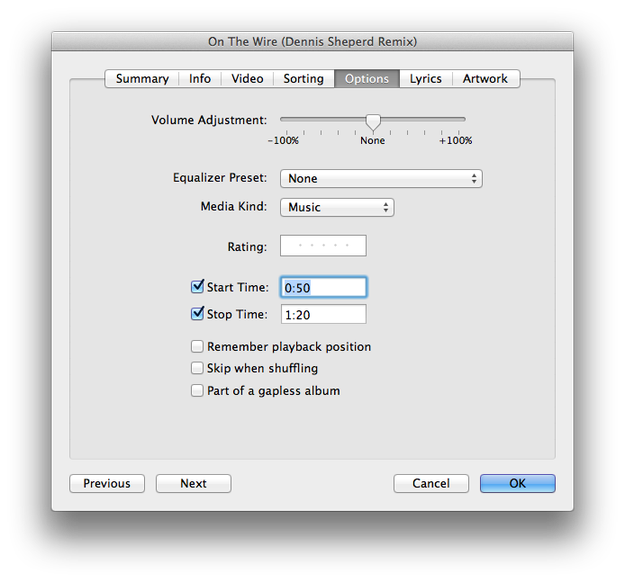
- Click on the Options tab and set Start Time and Stop Time (maximal about 30 seconds) and confirm it with clicking on the OK button.
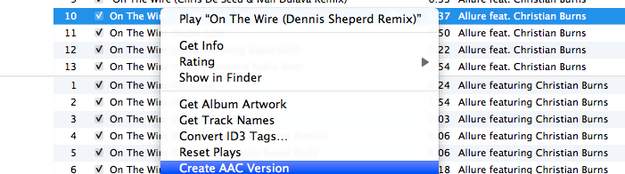
- Right-click on the song and select Create AAC Version option.
- The AAC version of selected song has the same length and position that you defined in step 3.
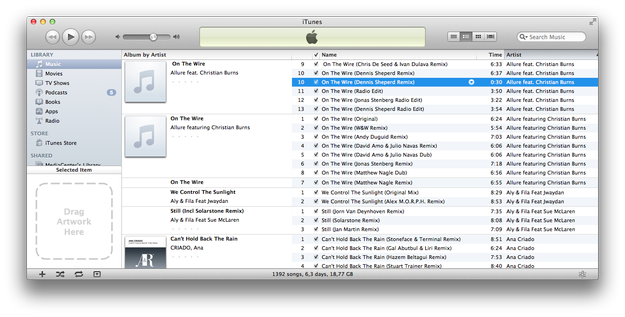
- Right-Click on the new song and select Show in Finder option.

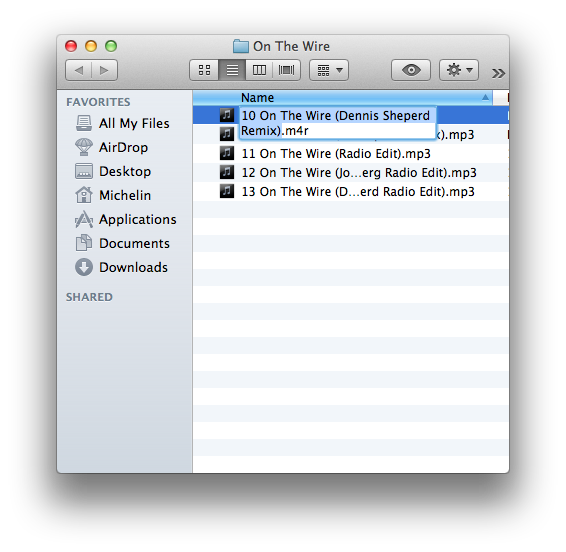
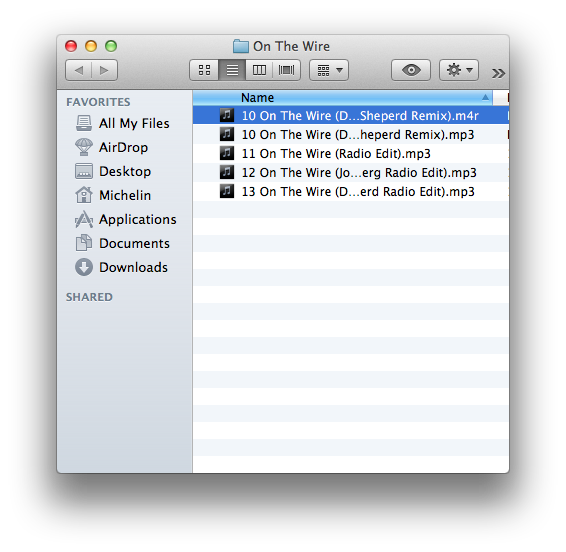
- Rename song's M4A file extension to M4R, but don't close the Finder window yet.
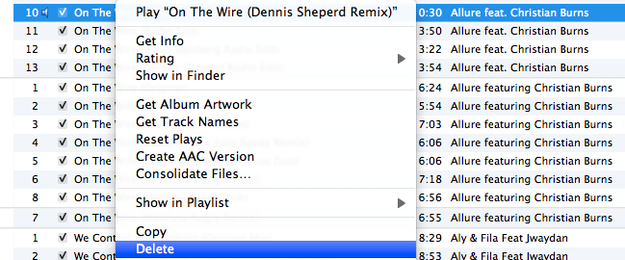
- Go back to iTunes, right-click on the customized song and select Delete option.
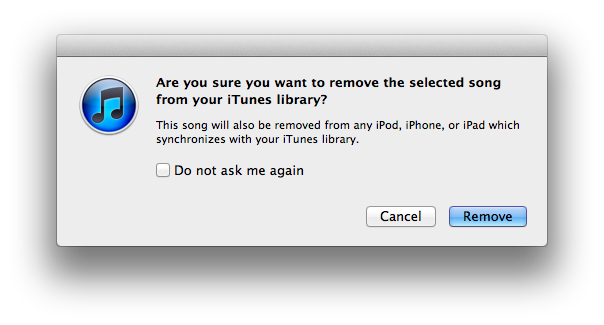
- iTunes will ask you, if you want to remove song from library, press the Remove button.
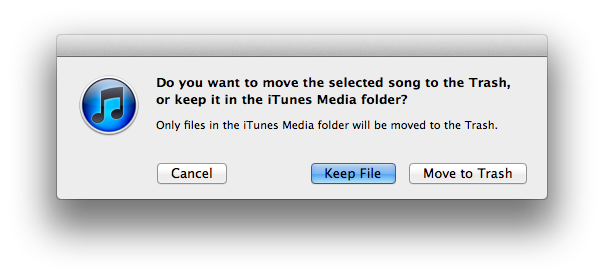
- Also it will ask you, if you want to move song to the Trash, press Keep File button.
- Back to the open Finder window and double click on M4R file.
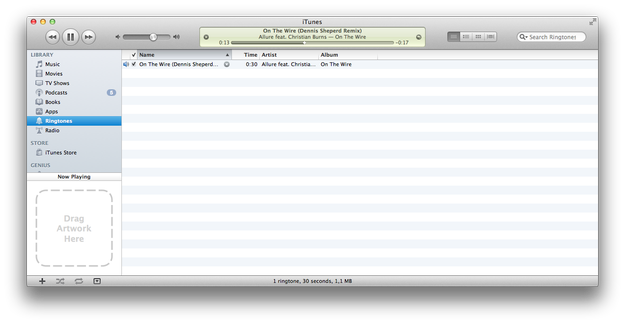
- And thats it. iTunes imported the new ringtone to Ringtone Library. Now you can connect your iPhone to the computer and transfer the ringtone to it.
This tutorial works in iTunes for Mac as well as iTunes for Windows. However in iTunes for Windows set AAC Encoder instead MP3 Encoder in Import Settings options (Edit menu → Preferences → General → Import Settings).