
 Language
Related extensions:
 iPhone and other iOS devices is not able to work as standard USB mass storage device like devices with Android or standard USB flash drives. To copy data to your iPhone you have to use Apple iTunes that is the only official managing tool for iOS devices. Unfortunately, iTunes can only be used to copy specific filetypes, such as audio, video, pictures, ringtones, applications etc. to the device, but due to copyright laws protection it is not able to copy them back to the computer.
In this article we will show you how to avoid iTunes limitations and copy any files to the iPhone (iPad, iPod Touch) as well as copy back to a computer.
How to use iOS device as flash drive
USB Flash Drive for iPhone
USB Flash Drive for iPhone is an easy to use app compatible with all types of iOS devices, that is able to transfer files to and from device through USB cable and WiFi network. It also works as file manager (create folders, copy/delete files etc.), archive extractor (ZIP, RAR, 7z, TAR, GZ, BZ2), document viewer (Microsoft Office, iWorks, PDF, TXT), photo viewer, audio player (MP3, AAC, M4A etc.) and video player (MP4, M4V, MOV, AVI, FLV, WMV, MKV etc.).
How to transfer files to iPhone through USB cable
Install USB Flash Drive from iTunes App Store to your iOS device and connect it through USB cable to a computer.
- Open iTunes and click on connected device, in our case File-extensions.org iPad. You will see the summary information about device.
- Click on Apps option in upper menu.
- Scroll down by page to File Sharing option and select USBFlashDrive app.
- Now you can click on Add... button and select files, which you need to copy to device, or simply pull files by mouse from Windows Explorer window to USBFlashDrive Documents window in iTunes.
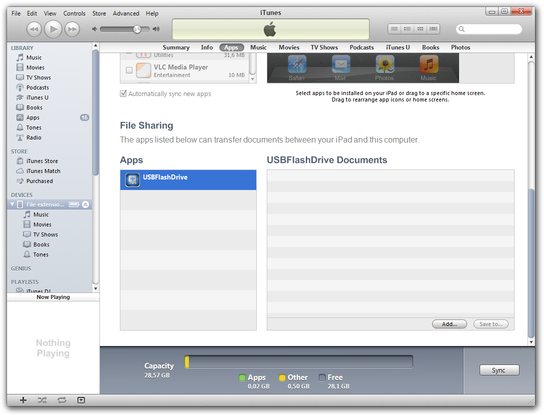
iTunes File Sharing option
Now wait until iTunes finishes the copy process and you can disconnect the device from computer. Open USB Flash Drive application and you can manage copied files in the device.
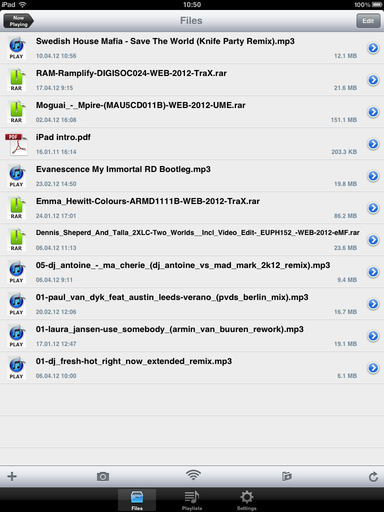
USB Flash Drive Files manager
To copy files from device to computer use the same way that is described in paragraph bellow, just select files that you need to copy to computer, drag them by mouse and drop them to folder, where you want, or select files and click on Save to... button.
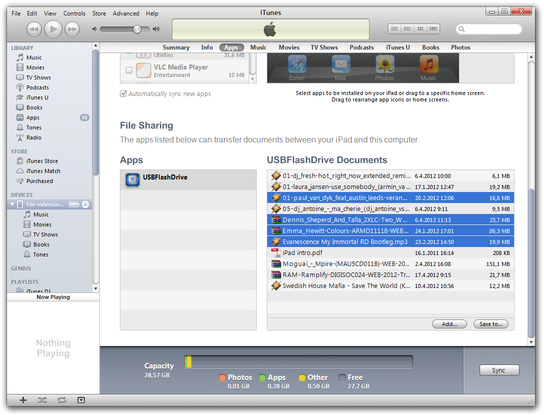
iTunes USBFlashDrive copy files to computer
How to transfer files to iPhone through WiFi network
This way is useful on a places where is not able to copy data through USB cable and iTunes, however covered by WiFi network. Keep on mind, transfer speed through WiFi is slower than USB cable connection.
Open USB Flash Drive app in your device. Click on Files option. Click on WiFi icon and enable Wi-Fi Transfer option. Now you have established WiFi transfer service in wireless network.
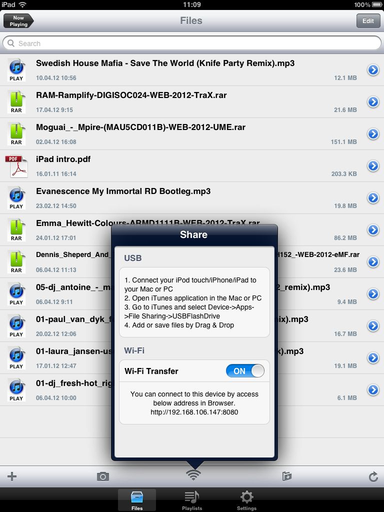
USB Flash Drive Wi-Fi Transfer settings
Open an Internet browser and type local IP address with port that is visible in Wi-Fi Transfer option to browser address bar.
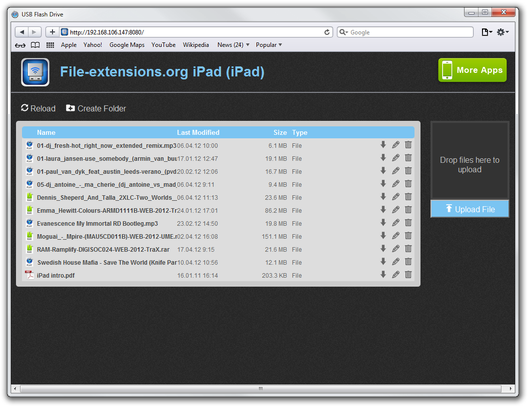
USB Flash Drive web files manager
Now you are able to manage content of your USB Flash Drive in the device as well as upload or download files. It is recommended to switch off Wi-Fi transfer after you finished to prevent against unauthorized access to your files.