Language
Related extensions:
Icons in Microsoft Windows applications
Applications for Microsoft Windows operating system have usually their own default icons, that are mainly used for easier file identification. Some applications have the option to change their own icons for their associated files, but if this option is not available in the program itself its usually not possible to just easily change the file icon.
Settings for the icons are stored in the windows registry keys and this can only be changed by using Windows Registry Editor tool.
Registry Editor and IconViewer
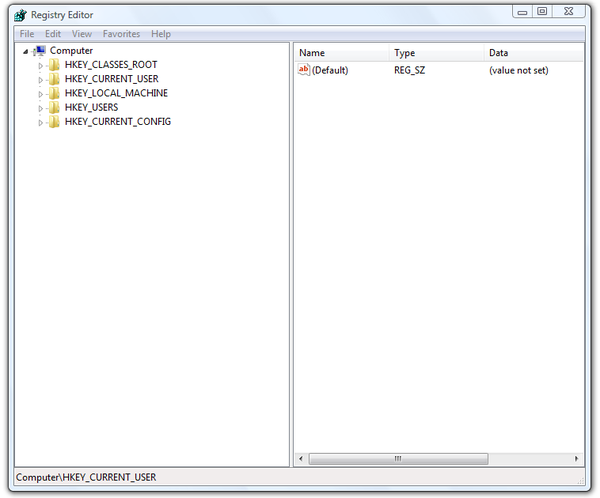
Registry Editor is a tool intended for advanced users. It's used to view and change settings in the system registry, that contain information about your computer and Windows internal settings. Windows refers to this information and updates it whenever you make changes to your computer, install a new program, create user profiles, or add new hardware. Registry Editor lets you view registers, folders, files, and settings in the registry file for each loop.
IconViewer
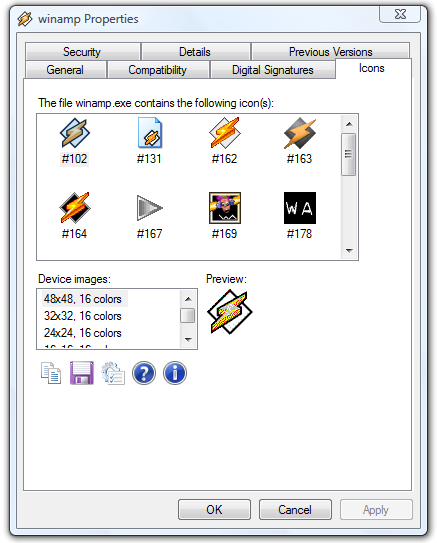
Another utility, that can be very helpful for icon changing is IconViewer. IconViewer is a free Windows Explorer extension that lets you easily view, copy, and save icons contained within programs and libraries. Open a file's Properties box, select the "Icons" tab, and view the icons contained in the file.
How to change icon if using default Windows 7 application
These instructions describe how to change the default WMA file icon, if you are using Microsoft Windows Media Player as a default media player for them. This guide will also show you how to change file icons of other applications.
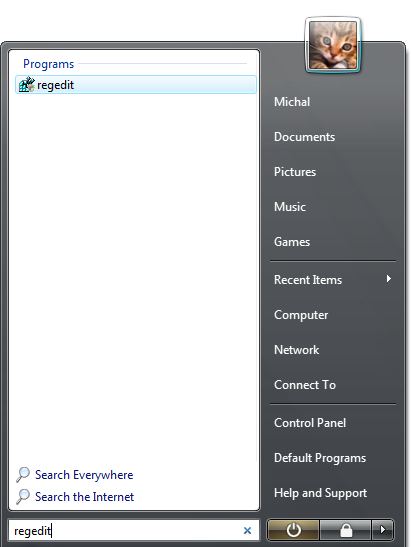
- Open the Registry Editor by type regedit in the Start menu search toolbox and press Enter.
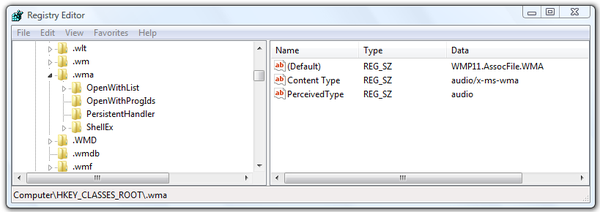
- In the Registry Editor find the \HKEY_CLASSES_ROOT\.wma registry entry and check (Default) key, in our case it contains the default association key WMP11.AssocFile.WMA.
- Go down through the \HKEY_CLASSES_ROOT\ , find the WMP11.AssocFile.WMA key and double click on it.
- Click on DefaultIcon registry key folder and you will see (Default) key.
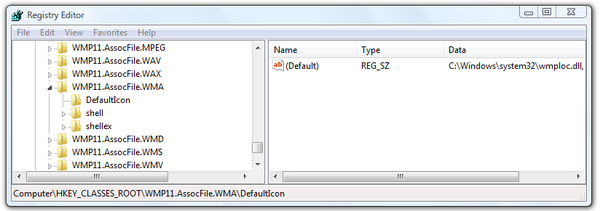
- Double click on it and Registry Editor will open the Edit String window.
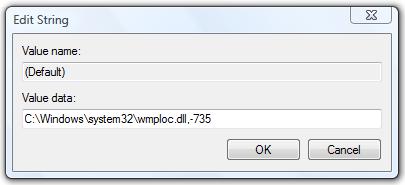
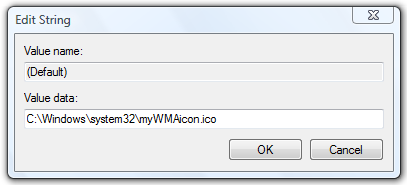
- You can edit the Value data box In the Edit String window. You can change path to other icon file or icon library. After reboot, Windows will use the new icon as the default one for that file type. You can use any icon file with ICO file extension, or icons library with the DLL or EXE file extensions. The number at the end of the Value data path is the position of the icon in the icon library.
How to change icon if using third party application
- Open the Registry Editor by typing regedit in the Start menu search toolbox and press Enter.
- In the Registry Editor find the following registry string:
\HKEY_CURRENT_USER\Sofware\Microsoft\Windows\CurrentVersion\Explorer\FilExts\.wma\UserChoice
then check the Progid key for the association of WMA files. In our case its the Winamp.File.WMA valuey.
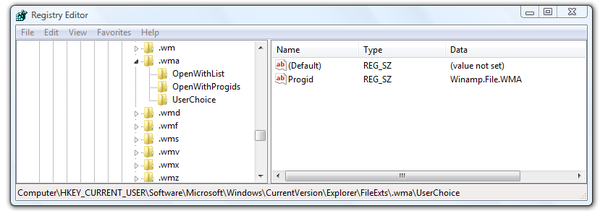
- Go to the \HKEY_CLASSES_ROOT\ , find the Winamp.File.WMA key value and double click on it.
- Click on DefaultIcon registry key folder and you will see (Default) key value for the WMA.

- Double click on it and Registry Editor will open the Edit String window.
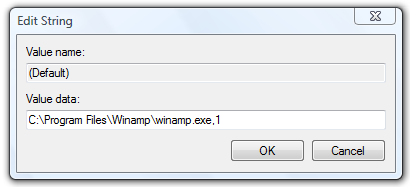
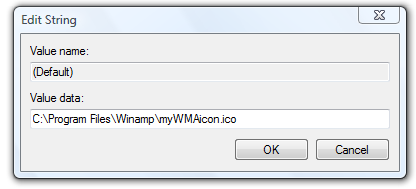
- You can edit the Value data box In the Edit String window. You can change path to other icon file or icon library. After reboot, Windows will use the new icon as the default one for that file type. You can use any icon file with ICO file extension, or icons library with the DLL or EXE file extensions. The number at the end of the Value data path is the position of the icon in the icon library.
How to find icon position in a icon library
If you want to add an icon from an icon library, you will need to know the number of its position in the library. To find this position you will need a suitable application like IconViewer. Install IconViewer to your computer, and once its installed, Right click on the icon library file and select Properties option. In the Properties window select the Icons tab and you will see a list of icons and also the number of their position in the icon library. This is the number that used to set the icon, that you want to use as a default from the icon library.