Language
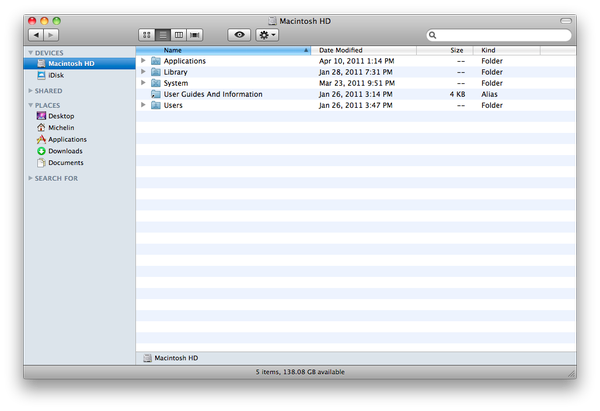
Finder is default file manager in the Apple Mac OS X. It lets you organize and access practically everything on your Mac, including applications, files, folders, discs, and shared drives on your network. You can also see rich, high-quality previews of the contents of your files.
How to show hidden files in Finder
There is no option to show hidden files in Finder's preferences menu. To show hidden files in Finder you have to use an application called Terminal. The Terminal application allows you to access the complete UNIX environment using standard commands, tools, and scripting languages.
-
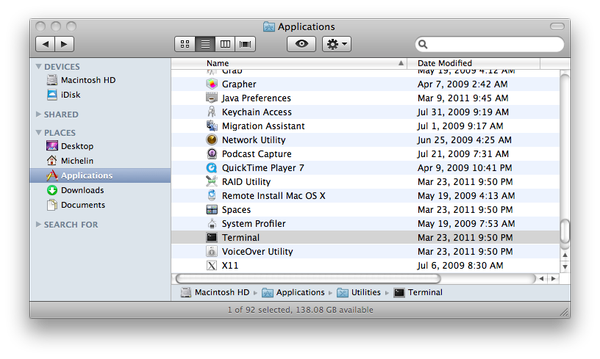
Open the Terminal application located in the Applications/Utilities/ folder
-
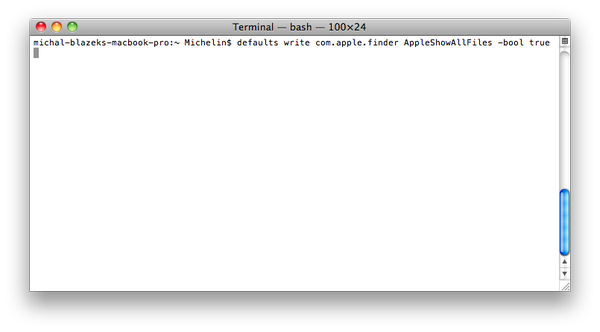
Type in defaults write com.apple.finder AppleShowAllFiles -bool true command
-
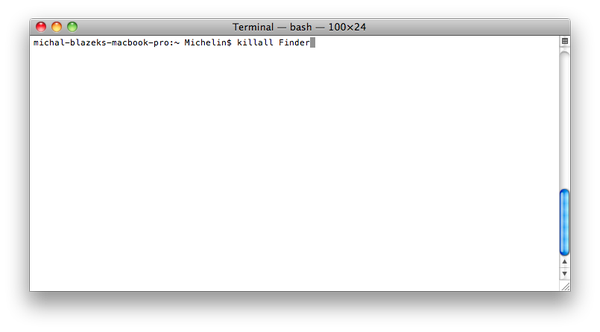
Type in killall Finder command
-
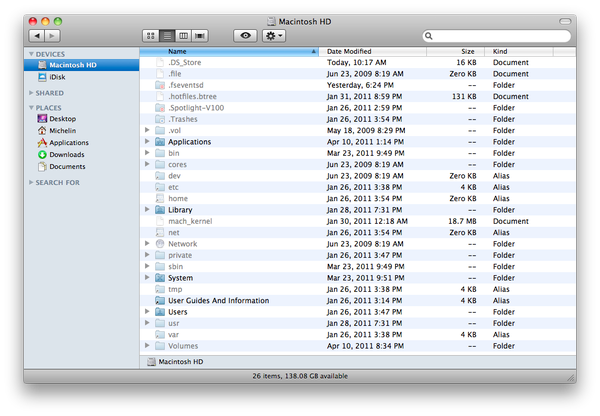
Close the Terminal and open the Finder. It will now show everything, including hidden files and folders.
How to hide hidden files in Finder
-
If you do not want to show hidden files again, open the Terminal application.
-
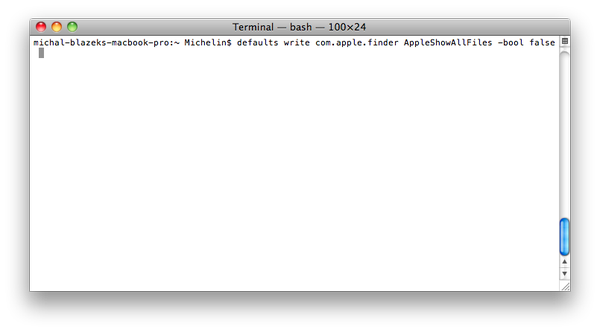
Type in defaults write com.apple.finder AppleShowAllFiles -bool false command
-
Type killall Finder command
-
Close the Terminal and open the Finder. It wont now show hidden files and folders.