
 Language
Related extensions:
You can buy or find free e-books in many formats. They might be almost identical, but some programs or devices can view them differently. This also goes for iBooks on iOS devices.
Whilst you can directly import and view e-books in PDF format to your iBooks, it is a lot better to use ePUB instead. When using PDFs, you will loose all the major features of iBooks which makes it great app for reading digital publications.
PDF viewing in iBooks does for example not support:
- Dynamic page turning
- Dictionary definition look-up
- Word selecting and highlighting
- Two-page layout for book-like appearance
We have made two screenshots of the very same ebook, once saved as PDF and the other in ePUB. It's the same book, but the difference in viewing both formats in iBooks is obvious.
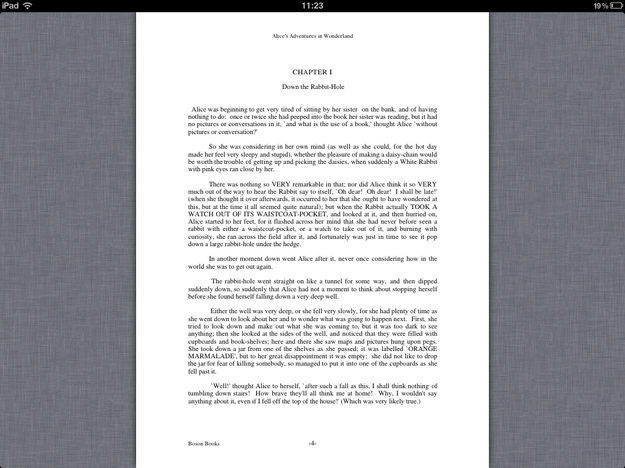
Alice in Wonderland ebook in PDF opened in iBooks iPad
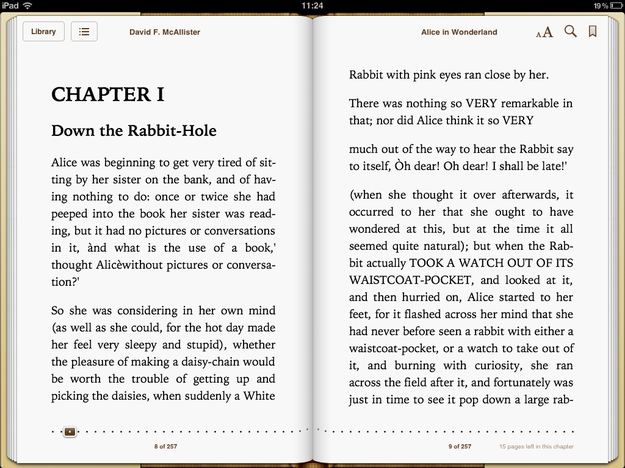
The same ebook in EPUB format opened in iBooks on iPad
The best thing you can do, is to convert your PDFs to ePUB and then import them to your library. This can be done also with any other ebook format, because iBooks has rather limited support for more exotic digital book types.
How to convert PDF to ePub with Calibre for Mac
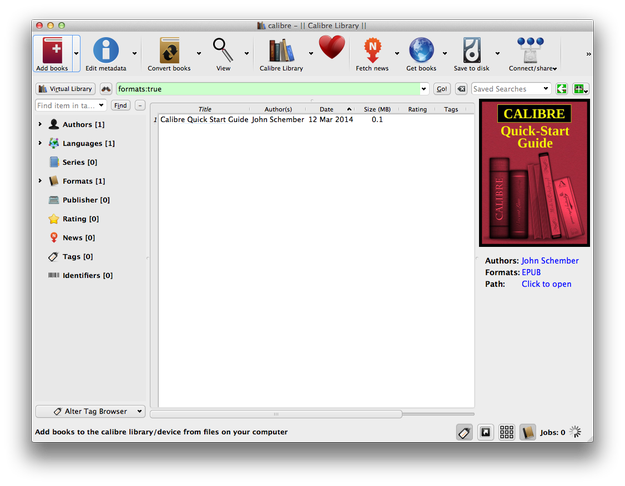
Calibre is free cross-platform e-book management, viewing and converting tool. You can download it from developer's website. To install it simply copy calibre.app from *.dmg archive to Applications folder.
In Calibre click on Add Books button in the upper menu and select and import the book in PDF document format you wish to convert.
This will of course work for any other ebook format, like MOBI or similar.
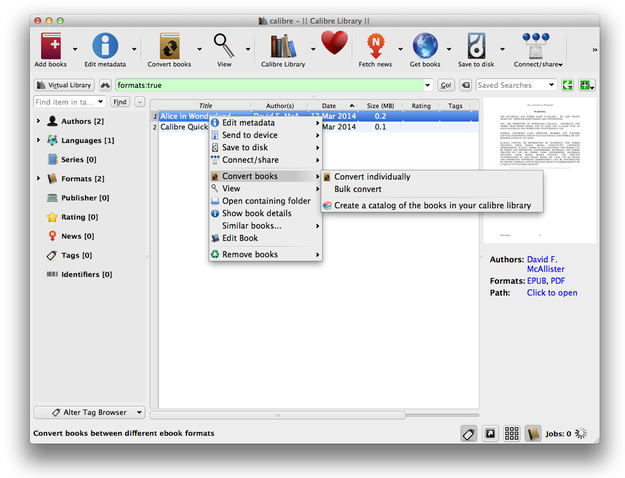
Select the imported PDF book and click on the Convert books button in upper menu, or right-click on the book select Convert books → Convert individually option.
Set output format to EPUB and convert it with clicking on the OK button.
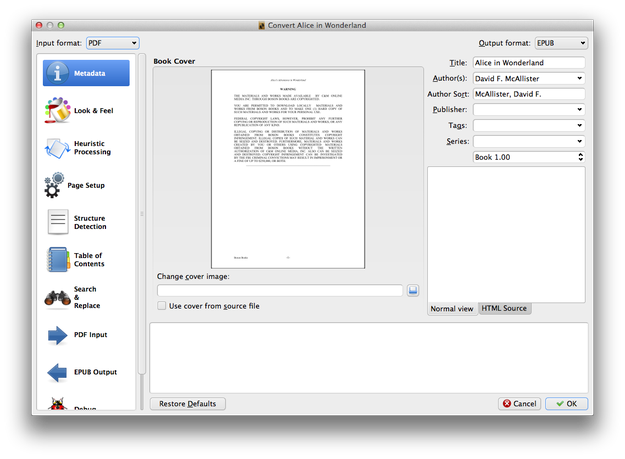
The new *.epub file will be stored in Calibre's default library. Now you can import it to the iTunes software (File → Add to Library, or drag and drop the file to iTunes).
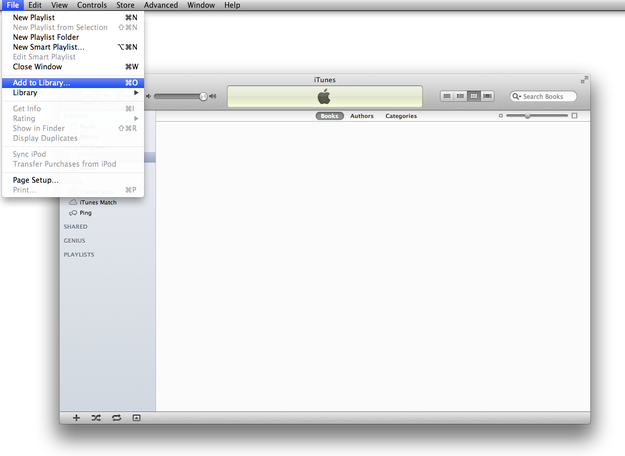
And transfer your new *.epub to your device, or sync your library.
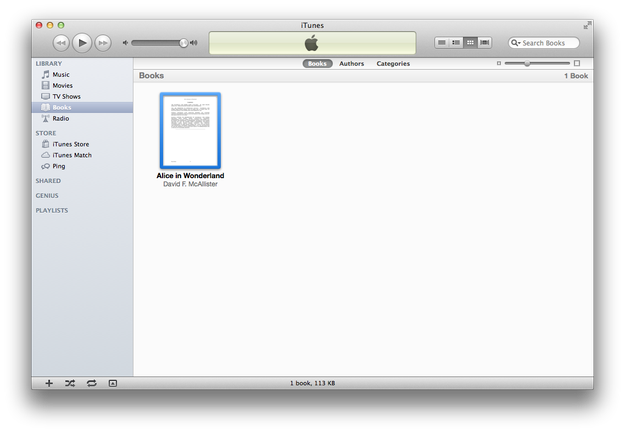
And that's it. No need to read ugly PDFs in your iBooks when you can read the same in awesome ePUB.