Language
Related extensions:
How to use themes from latest Windows in older Windows 7
Windows 8 introduced new wide desktop wallpapers that could be simultaneously shown on dual monitors simultaneously. This change also changed the default themes from THEMEPACK to DESKTHEMEPACK and this remains the same even in the later Windows 8.1 and latest Windows 10.
The key difference between .themepack and .deskthemepack is that the original packages contain JPEG wallpapers in up to ~1920x1200 resolution, whilst the latest packages contain pictures in ~3840x1200 resolution.
This means that new themes distributed by Microsoft cannot be used on previous Windows 7 machines, but you can freely use older themes in Windows 10.
Many websites exist that offer free desktop themes for Windows 10. Packages that contain nice single-monitor high resolution pictures ~2560x1440 can be re-used on older Windows 7 machines and this article will show you how.
Just keep in mind that you cannot add multi-monitor desktop theme support to Windows 7, you can just repurpose the pictures from new .deskthemepack files so they can be used in Windows 7.
How to turn DESKTHEMEPACK to THEMEPACK package
Unfortunately, no converter exists that could simply turn .deskthemepack files to .themepack files, so you have to use the following workaround.
Decompress the Windows 10 theme package
Find and download some .deskthemepack you want to use on Windows 7. Some websites even offer a choice between Windows 7 and Windows 8/8.1/10 versions, which can spare you all this hassle.
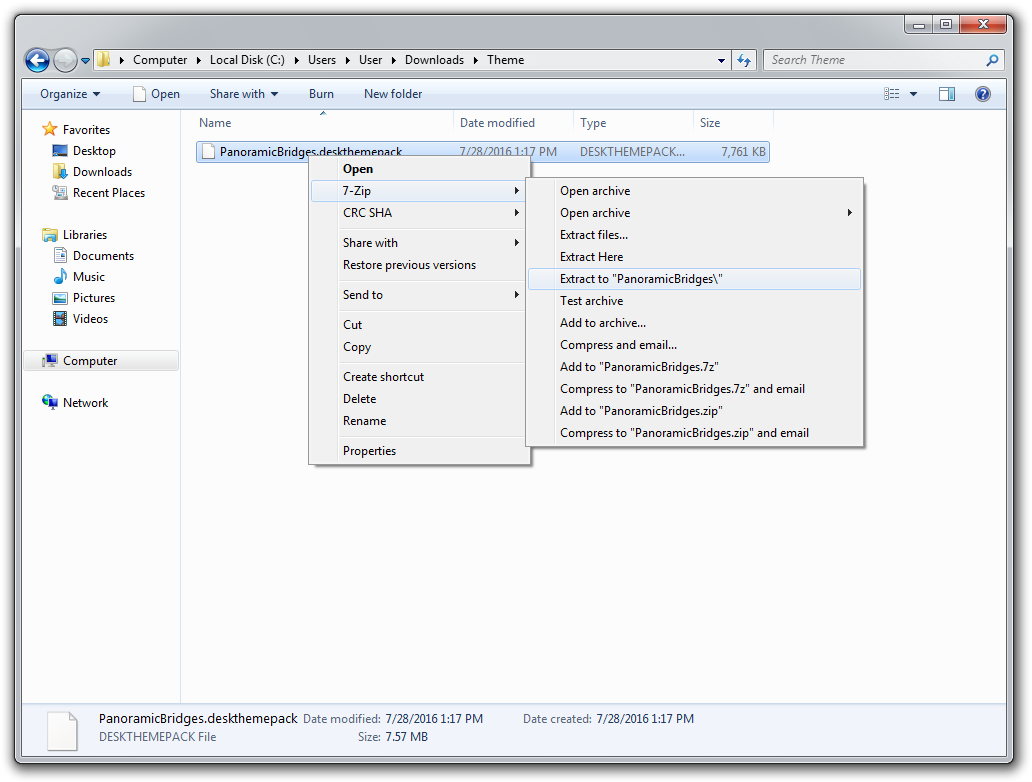
Once you have the file, you can decompress it using any tool that supports Windows CAB format, for example the popular 7-zip.
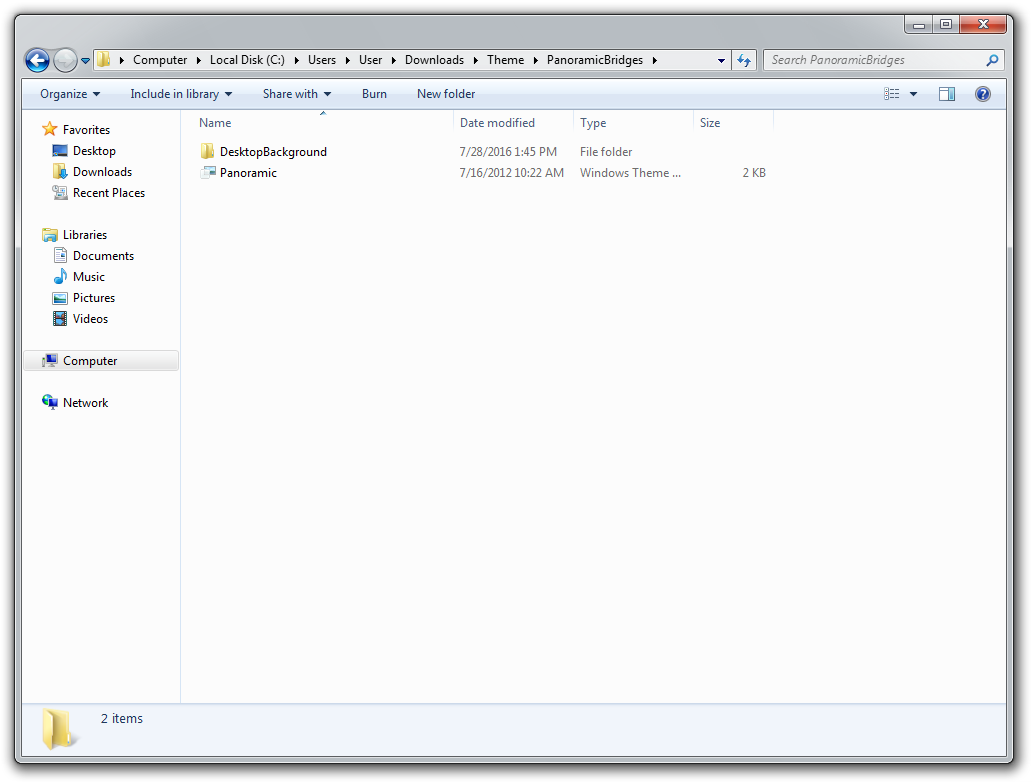
Once the package is extracted, you can see the actual contents, i.e. one or more folders, bunch of settings and configuration files AND the nice high-res pictures located DesktopBackground folder.
Make new themepack package
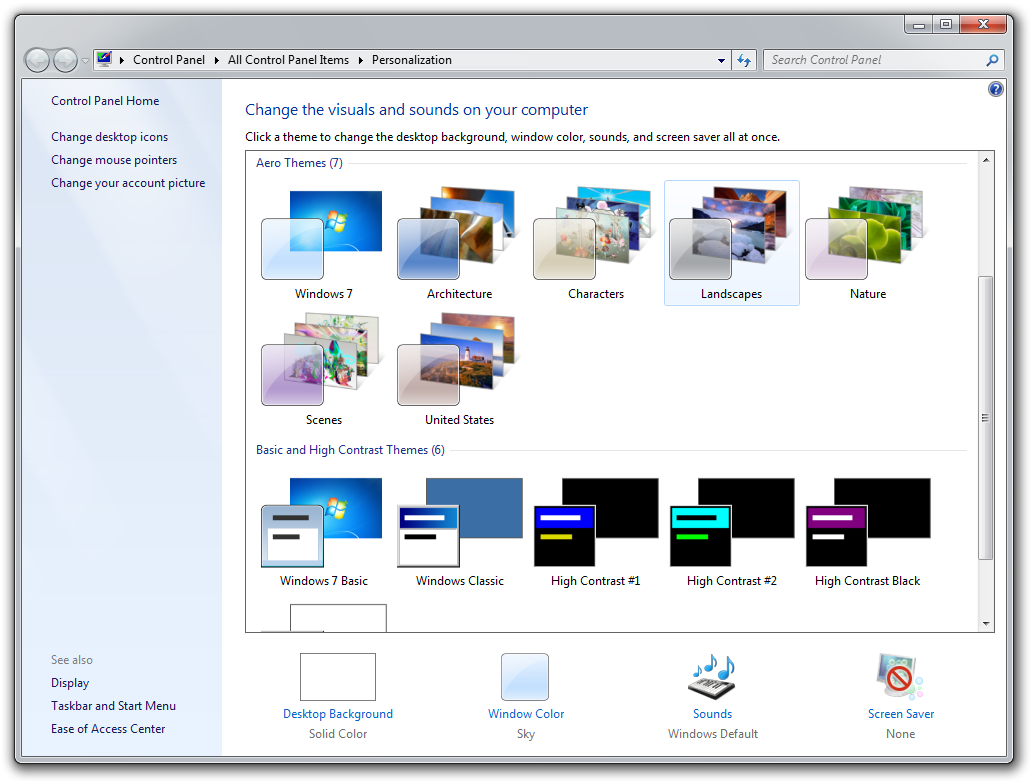
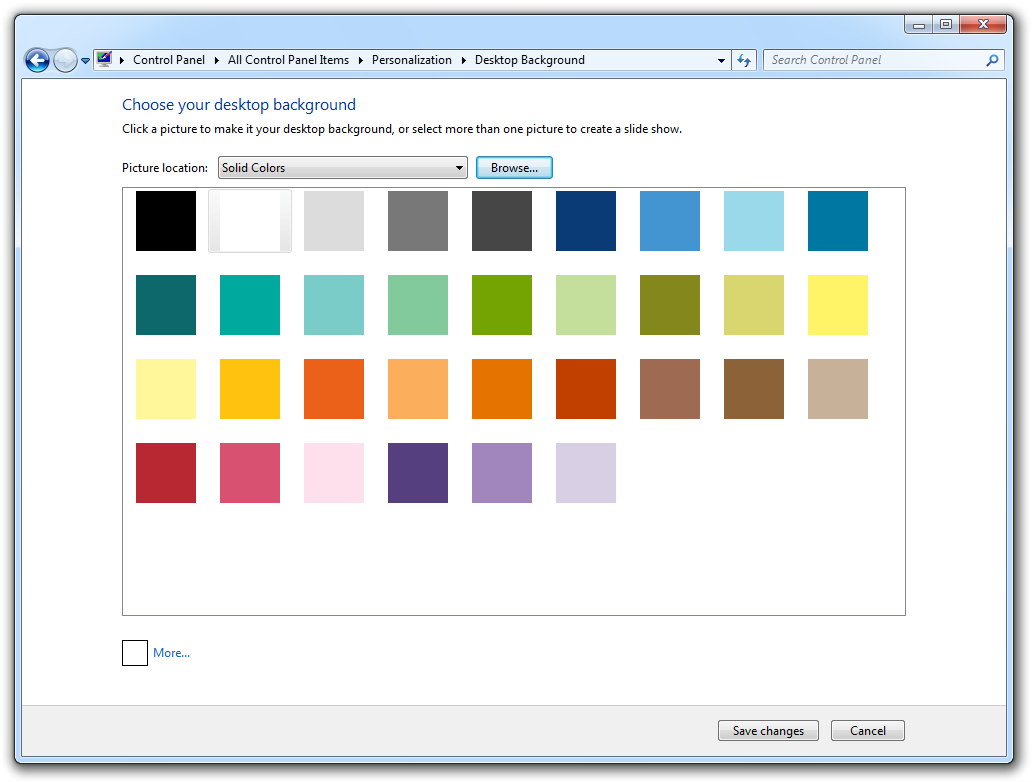
Once you have the picture, it's time to make a new themepack for Windows 7. Open the Personalize Control Panel (or right-click on your desktop and select Personalize) and click on the "Desktop Backgrounds" option in the lower part of the control panel window.
Click on "Browse..." on the next screen and find the decompressed DesktopBackground folder with the pictures from the .deskthemepack package.
Once you do this, you will see the desktop wallpaper changed. Now you can either select them, or just pick some of them, but you will likely need to change the "Picture Position" settings, especially if your desktop is set to a resolution lower than the resolution of the wallpapers. There are some other settings, but you can change these later.
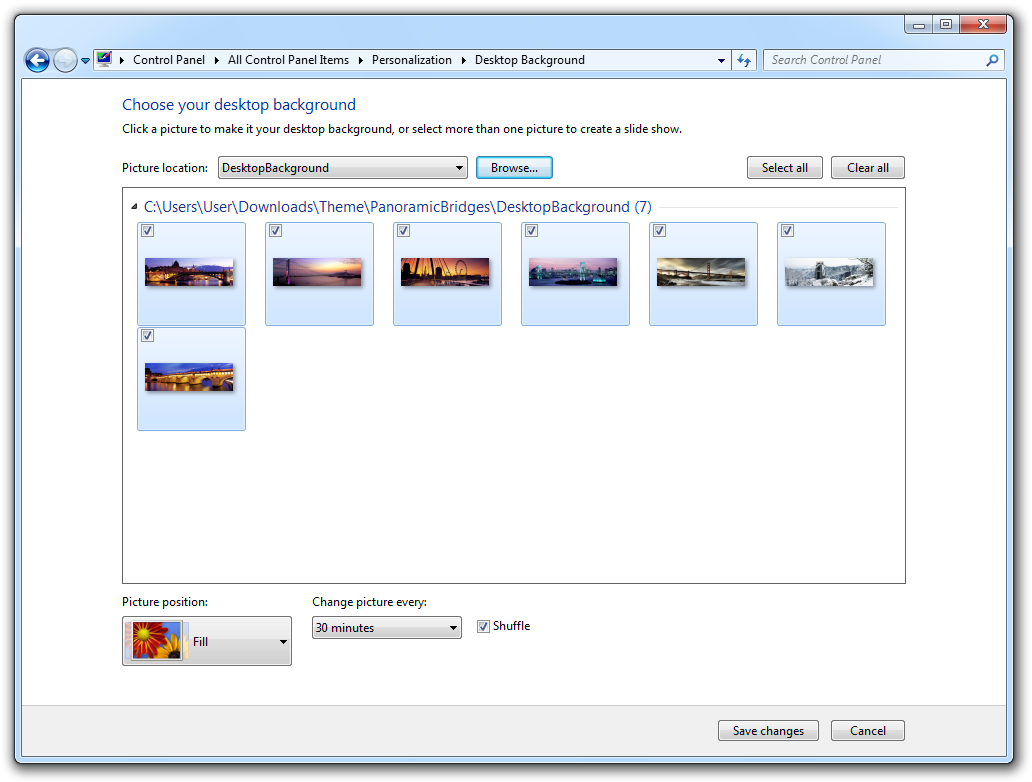
Save the new themepack package
When everything is set and you are happy with the changes, simply click on the "Save changes" button and you will go back to the Personalize Control Panel. Once there, just right-click on your new theme and select the "Save theme" option.
To get the .themepack file, you have to select the "Save theme for sharing" option which will save the file on your hard disk so you can potentially share it with others or apply to another computer.
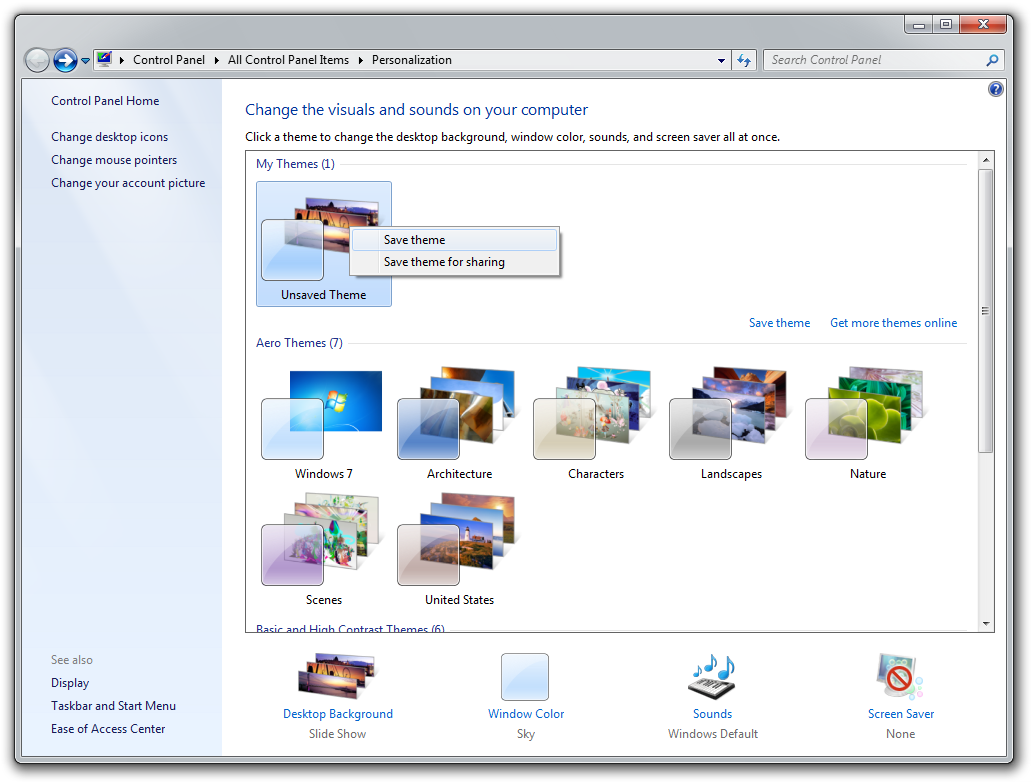
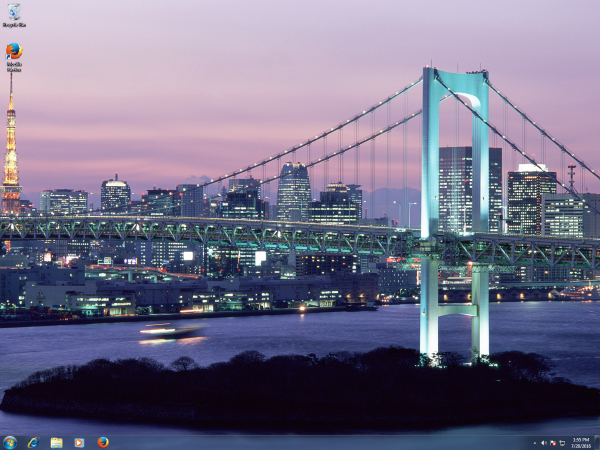
And that's pretty much it. As you can see, the original Windows 8/10 wallpaper can be applied on a Windows 7 machine.