
 Language
Related extensions:
Sony Playstation emulator
 Sony Playstation 1 was one of the most popular 32-bit video gaming console released in 1994 and eventually discontinued in 2006. Many gaming legends, like Tekken, Soul Blade, Final Fantasy and many more were released only for this platform.
But, you can still play them even now on newer computers and we will show you how to enjoy this titles on your Mac with a dedicated PCSX-Reloaded emulator.
PCSX-Reloaded is a PlayStation Emulator based on PCSX-df 1.9, with support for Windows, GNU/Linux and Mac OS X.
Use PCSX-Reloaded to play Playstation video games on Mac
PCSX-Reloaded is a free Sony Playstation emulator for Microsoft Windows, Mac and Linux. It requires an Intel-based Mac with OS X 10.7. and above to smooth run PSX games.
Download ZIP archive with PCSX-Reloaded from developer's website → unpack the archive and copy PCSXR.app file to your Applications folder.
If you run the PCSX-Reloaded for the first time, you will see a warning window about requiring a Playstation BIOS. Click on OK → Close the emulator. This first launch is needed, because the emulator will create other required folders in ~/Library.
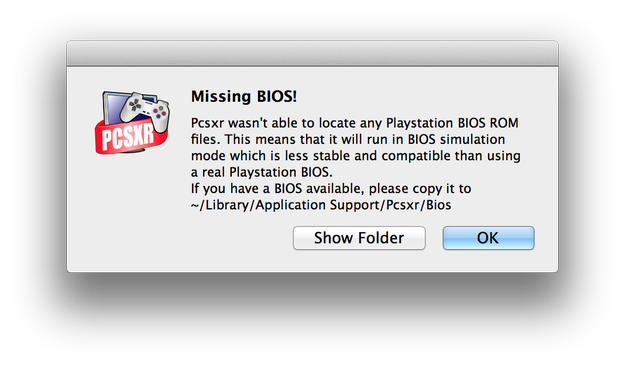
Download the archive with Sony Playstation 1 BIOS. Unpack the ZIP archive and copy BIOS files to:
~/Library/Application Support/PCSX/Bios
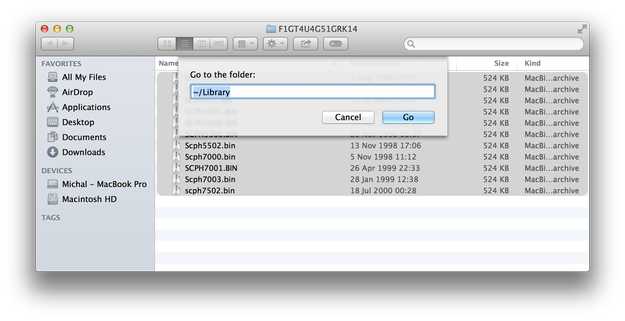
By default, Library folder is inaccessible in Finder. You can hit Command+Shift+G in the Finder and type ~/Library to temporary access to Library folder, or use third party file manager like muCommander to copy BIOS files to emulator's support folder.
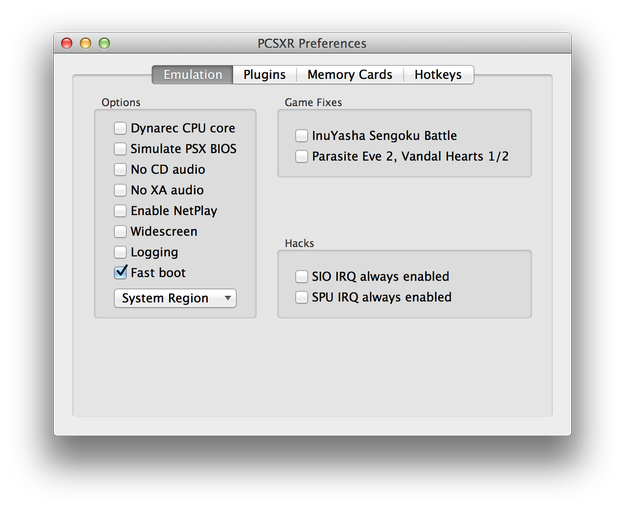
Start the PCSX-Reloaded again. To configure the emulator navigate to the PCSXR → Preferences options in upper menu bar (also Command+, shortcut), where you can set up various emulation options, plug-ins, Memory Cards (*.mcr file extension), hotkeys, controls etc.
Now your "MacStation 1" is prepared for gaming. Use File menu → Run CD, or Run ISO... options to load the game.
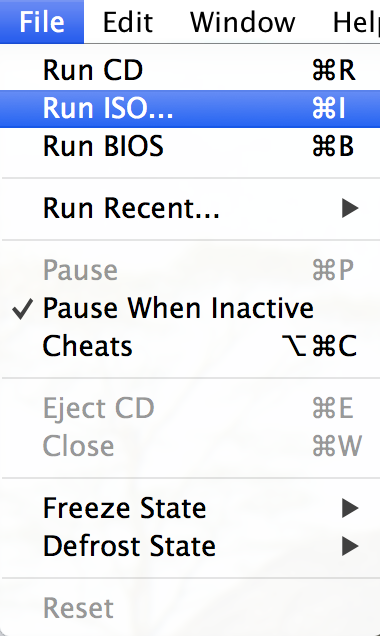
You can use your original video games for Sony Playstation on CD media, or download their ISO, BIN, IMG images from Internet archives.
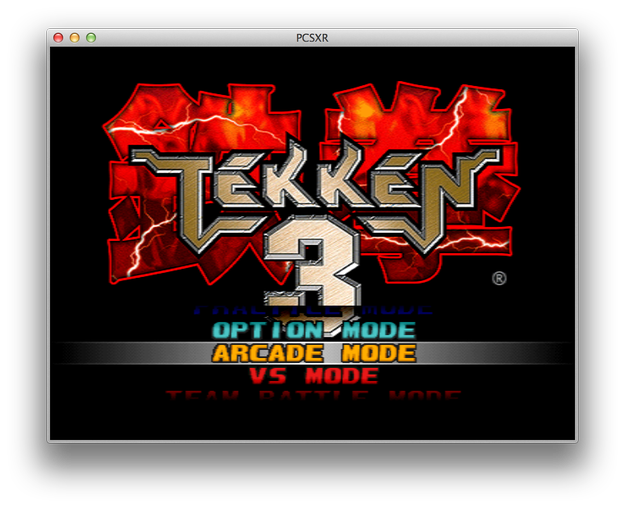
Many Playstation games available on the Internet are stored in ECM (Error Code Modeler) compression file format that is not supported by PCSX-Reloaded. On the Mac you can unpack *.ecm compressed files with ECM for Mac (available on Mac App Store for 0.99$), or with Command-Line Pack for Mac.