
 Language
Related extensions:
Problem: How do I transfer WhatsApp backup from iPhone to Android?
 WhatsApp Messenger is available in versions for various mobile operating systems and on each platform it uses different way how to store chat history (backup of user's conversations).
If you have bought new smart phone, or tablet with same operating system, you usually have no problem to recover your WhatsApp conversations (check out How to transfer WhatsApp chats from phone to phone). However, to move WhatsApp chat backups from one platform to another is more challenging.
This article will show you how to transfer WhatsApp file between iPhone and Android devices, which are the two most popular platforms in these days.
Extract WhatsApp conversations from iPhone
The very first thing you will need is a file called ChatStorage.sqlite that stores all your WhatsApp chats on iPhone.
Connect your iPhone to computer → Open iTunes and create local backup of iPhone.
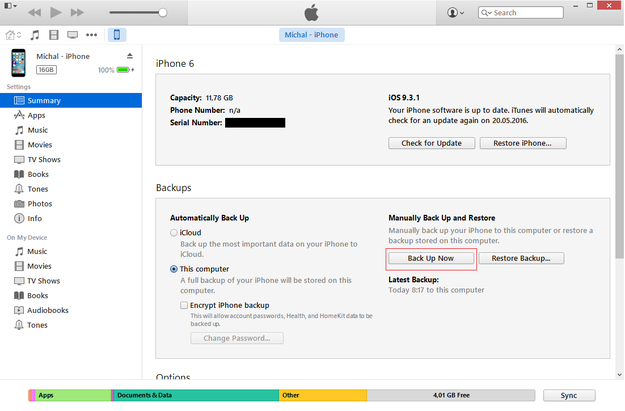
Apple iTunes create iPhone backup
After that close iTunes and you may also disconnect your iPhone.
Download any tool capable of browsing through of iPhone backup. We recommend iPhone Backup Extractor (free trial), iPhone Backup Browser for WazzapMigrator (free), or iBackup Viewer (free for unencrypted iPhone backups).
For our article we will use iPhone Backup Browser for WazzapMigrator → Download it and Open.
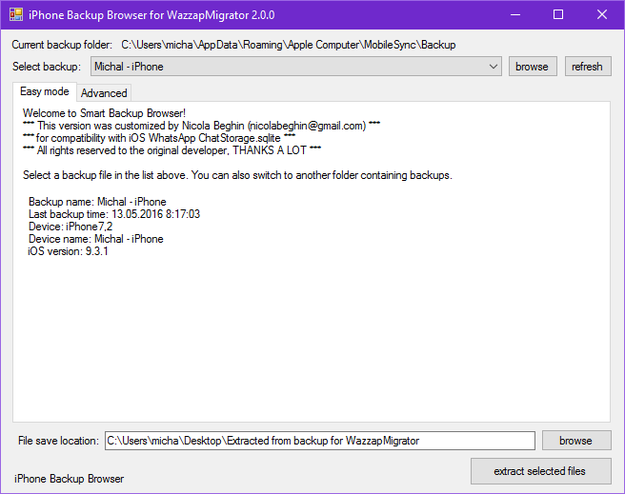
iPhone Backup Browser for WazzapMigrator
Select backup: option → Select your iPhone backup in pulldown menu, in our case Michal - iPhone.
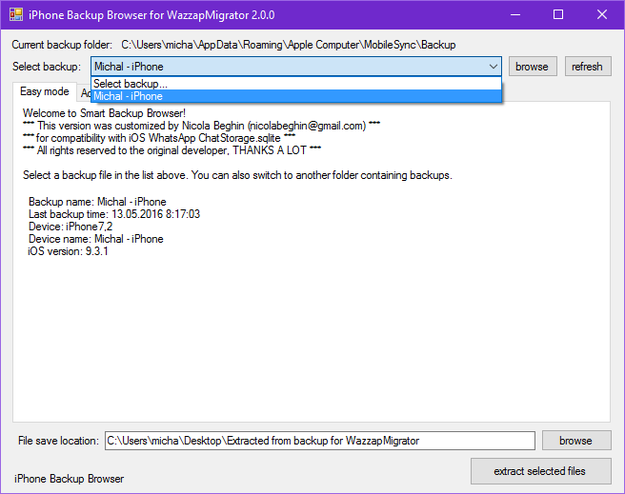
Select backup of iPhone
Click on Advanced tab → Applications and check the box before net.whatsapp.Whatsapp → Expand the tree structure with + button → Check boxes before ChatStorage.sqlite (stores conversations) → Check boxes before Library directory and its Media subfolder and also select all media data.
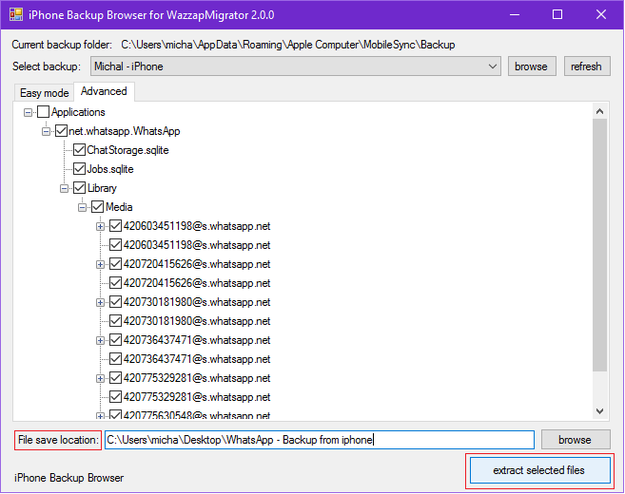
Extract WhatsApp conversations and media from iPhone backup
Set File save location: on your computer → Click on extract selected files button.
Copy iPhone WhatsApp conversation to Android Phone
Connect your Android phone to computer via USB and copy ChatStorage.sqlite file and Library/Media folder to Download folder stored on Internal storage, or SD card of your device.
You are also able to copy these files via some Cloud services (Google Drive, Dropbox, OneDrive), or e-mail service.
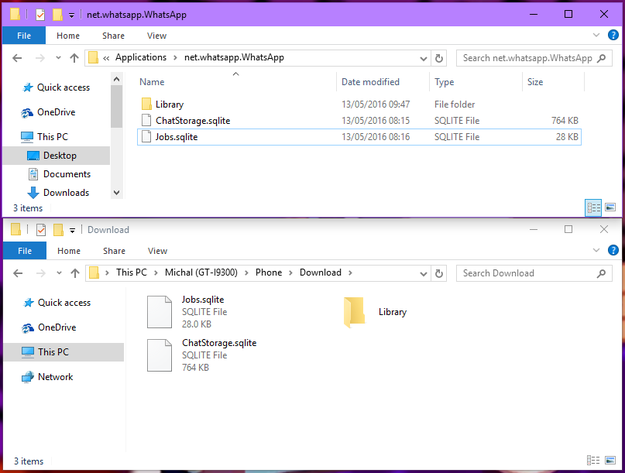
Copy WhatsApp conversations and media to Android Phone
Import WhatsApp conversations from iPhone to Android
To import your WhatsApp conversations to Android device, you will need an app called WazzapMigrator. It costs $3.38 on Google Play Store. It was also available as a Lite (free) version of this app, but it seems to have been removed from the store a while back.
Download WhatsApp Messenger to your Android device → Activate it → Purchase and download WazzapMigrator from Play Store.
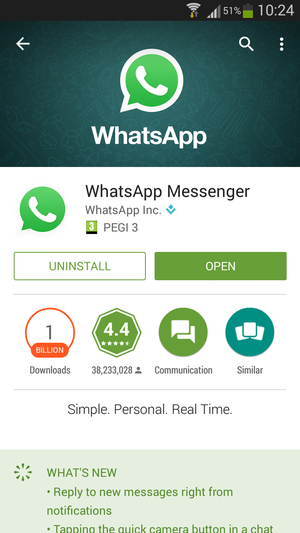
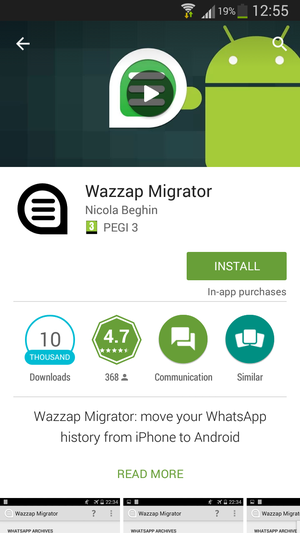
WhatsApp and WazzapMigrator in Play Store
If you don't want to restore media, such as pictures and videos to your conversations, you can skip another step!
Open File manager in your Android phone → Go to the Download folder → Library → Copy Media folder to → WazzapMigrator folder stored in root folder of your Internal storage, or SD card (If you can't find it → create it).
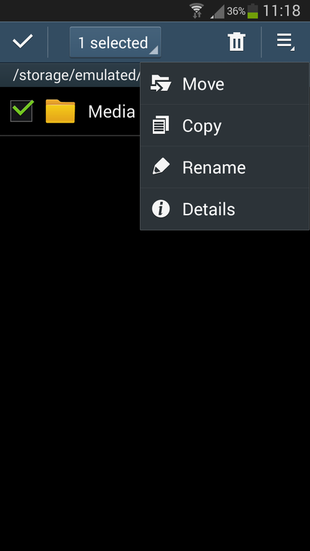
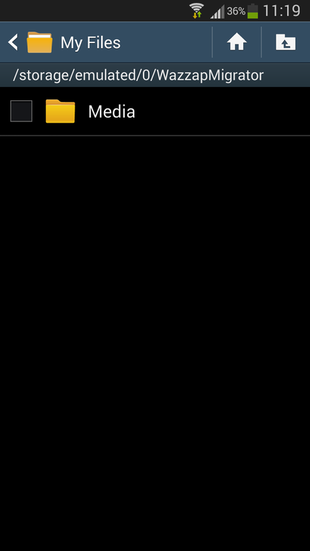
Copy Media files to WazzapMigrator folder on Android
After that, open WazzapMigrator → Click on Select iPhone Archive button → After that click on "Play" button and wait till the app restore your iPhone WhatsApp conversation to WhatsApp for Android format.
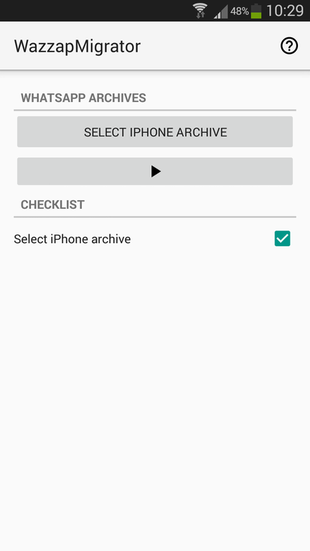
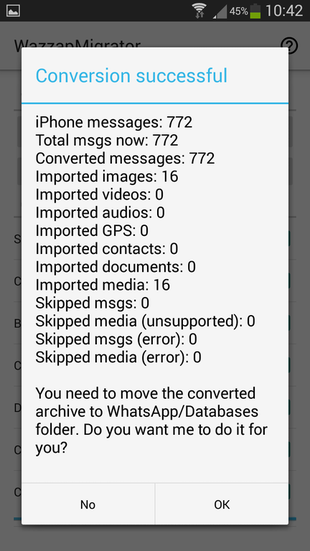
WazzapMigrator converting messages and media
Click on OK button.
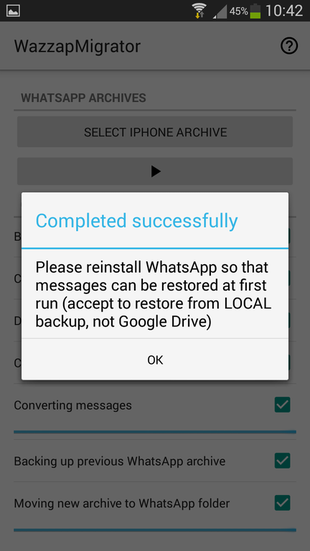
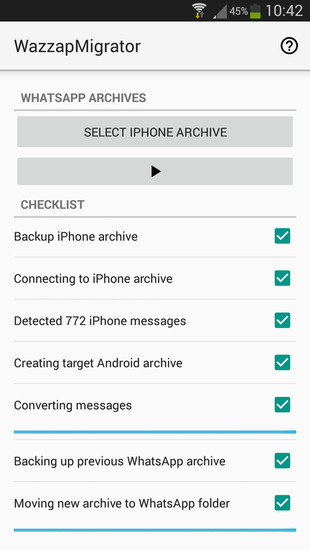
WazzapMigrator finished
Click on OK button → Close WazzapMigrator.
Uninstall WhatsApp from your Android phone (backup folders will be preserved)!! → and again download it from Play Store.
Open WhatsApp, verify your phone number → The backup of conversation on your phone will be recognised → Click on Restore button and wait till WhatsApp import your conversations.
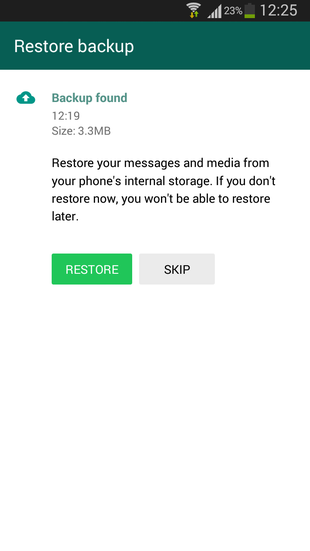
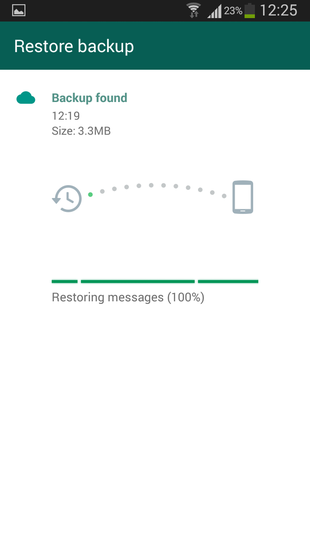
Restore WhatsApp for Android backup
And that's it!! Now your iPhone WhatsApp chat history is transferred in your Android device.
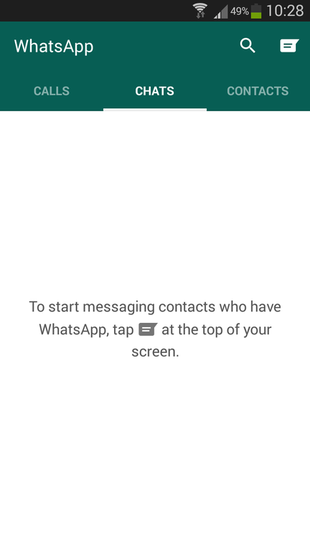
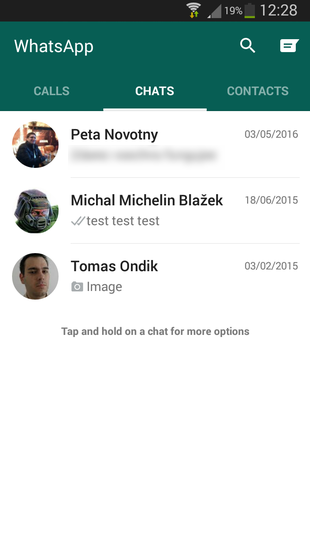
WhatsApp conversations from iPhone are restored in WhatsApp for Android app