
 Language
File Hosts adalah file sistem penting yang menyimpan konfigurasi untuk protokol jaringan IP. File ini digunakan untuk memetakan nama host ke alamat IP. File ini sering dimodifikasi untuk mengarahkan nama domain ke alamat lokal, untuk memblokir situs berbahaya atau situs dengan konten yang tidak pantas, untuk pengembangan web, dan sebagainya.
File ini juga bisa disalahgunakan oleh spyware dan malware lain untuk mengarahkan domain, seperti phishing perbankan internet Anda ke alamat IP lain guna mencuri informasi login akun bank Anda.
File Hosts disimpan dalam format file teks sederhana dan dapat ditemukan sebagai "hosts" tanpa ekstensi file apapun dalam folder Windows\System32\Drivers\etc.
Contoh file Hosts yang belum dikustomisasi di Microsoft Windows:
# Copyright (c) 1993-2009 Microsoft Corp.

	#

	# This is a sample HOSTS file used by Microsoft TCP/IP for Windows.

	#

	# This file contains the mappings of IP addresses to host names. Each

	# entry should be kept on an individual line. The IP address should

	# be placed in the first column followed by the corresponding host name.

	# The IP address and the host name should be separated by at least one

	# space.

	#

	# Additionally, comments (such as these) may be inserted on individual

	# lines or following the machine name denoted by a '#' symbol.

	#

	# For example:

	#

	#      102.54.94.97     rhino.acme.com          # source server

	#       38.25.63.10      x.acme.com             # x client host
# localhost name resolution is handled within DNS itself.

	#      127.0.0.1       localhost

	#       ::1            localhost
Edit file hosts dengan Microsoft Windows Notepad
Windows Notepad adalah editor teks sederhana yang terpasang di sistem operasi Microsoft Windows. Program ini juga dapat digunakan untuk mengedit file hosts.
Langkah 1 - Menampilkan file sistem dan tersembunyi
Karena file Hosts adalah file sistem tersembunyi, Anda perlu mengaktifkan tampilan file/folder tersembunyi dan sistem di Windows Explorer.
Buka Control Panel → Appearance and Personalization → Folder Options. Klik tab View dan pilih opsi Show hidden files, folders, and drives. Klik tombol Apply dan OK.
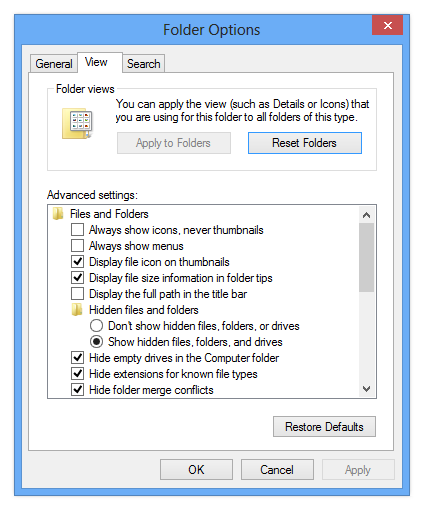
Opsi folder Windows
Langkah 2 - Buka dan edit file hosts
Jalankan Microsoft Windows Notepad sebagai Administrator (klik ikon Notepad dengan tombol kanan mouse dan pilih opsi Run as Administrator).
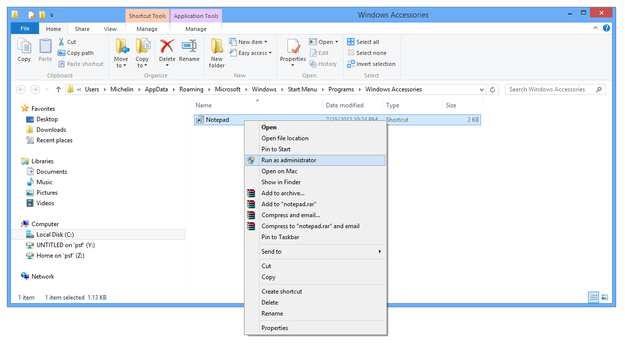
Windows Notepad Jalankan sebagai administrator
Klik menu File → Open... (atau tekan shortcut Ctrl+O) → pilih opsi All Files pada kotak tipe file dan navigasikan ke folder C:\Windows\System32\Drivers\etc.
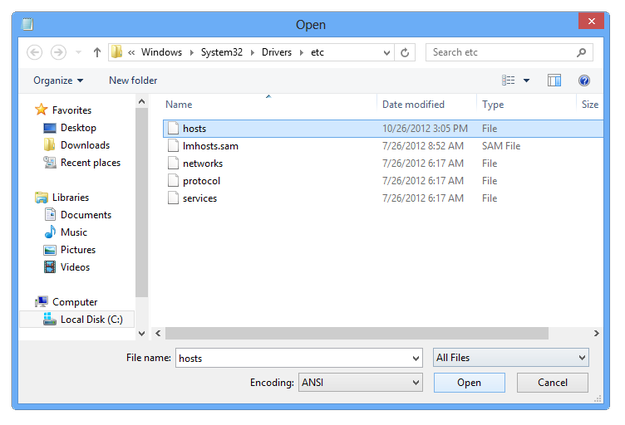
Windows Notepad membuka file hosts
Double click pada file hosts dan sekarang Anda dapat mengeditnya.
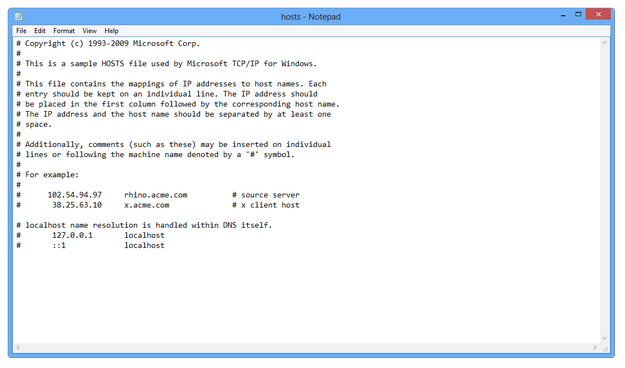
Windows Notepad mengedit hosts
Setelah selesai mengedit klik menu File → Save (atau shortcut Ctrl+S).
Langkah 3 - Flush cache DNS
Untuk memuat pengaturan baru dari file hosts yang dikustomisasi ke sistem, buka Command Line Windows (tekan tombol Win → ketik cmd.exe dan tekan Enter) dan ketik perintah ipconfig /flushdns. Anda juga dapat me-restart komputer.
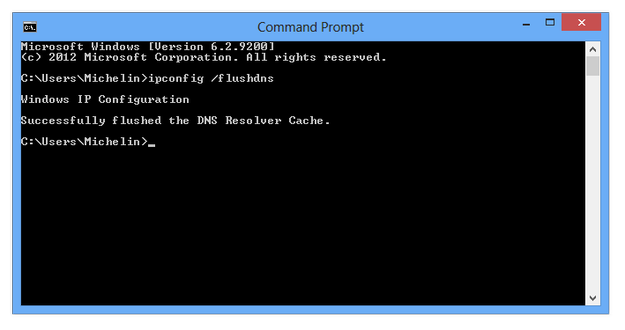
Perintah flush cache DNS di Command Line Windows