Language
Related extensions:
Hibernation is feature of many operating systems that is used to faster start of a computer after powering off. Hibernation must also be supported by hardware installed in the computer. Before the computer is switched to hibernation mode, the system saves all content of RAM to hard drive, so when the system is again powered up, it will be restored in the state before hibernation.
What is hyberfil.sys
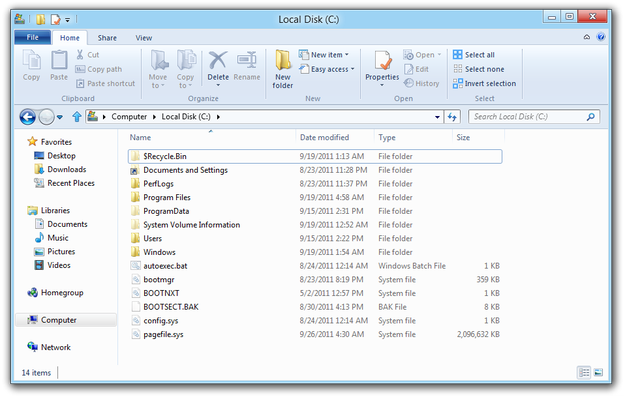
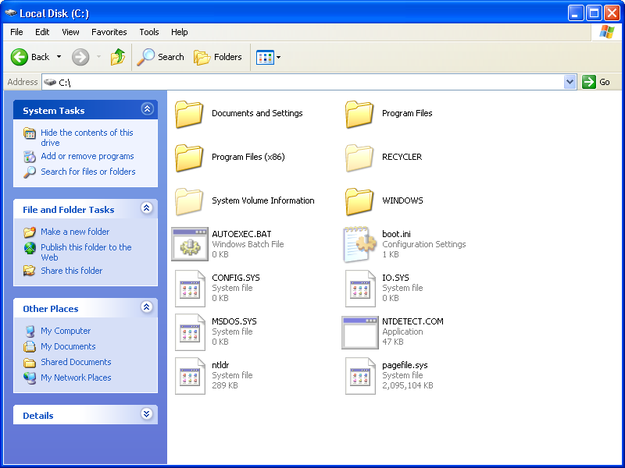
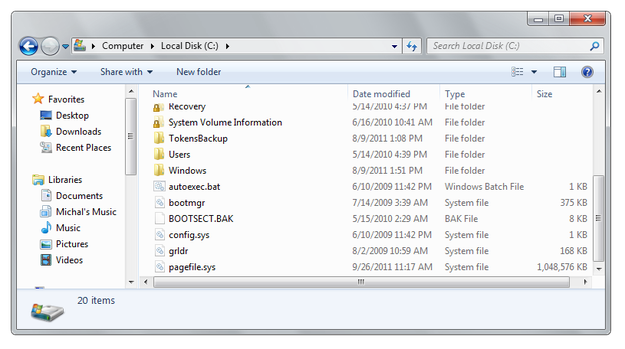
The hiberfil.sys is hidden system file used by hibernation service in Microsoft Windows operating system for storing the content of RAM when the computer hibernates and it has always the same size as the total RAM installed in the computer.
If you don't use the hibernation service on your computer (e.g. your computer is always on), you can disable it and save the disk space on your system hard disk, because the hiberfil.sys file will also be removed from root of the system partition.
How to delete hiberfil.sys in Windows XP
By default Windows XP has the hibernation service disabled, because when it was released, many hardware components didn't support hibernation.
Many computer producers that pre-installed Windows XP on hardware compatible computers, set the hibernation service to enabled. If you don't need to use the hibernation on your computer, you can disable it.
-
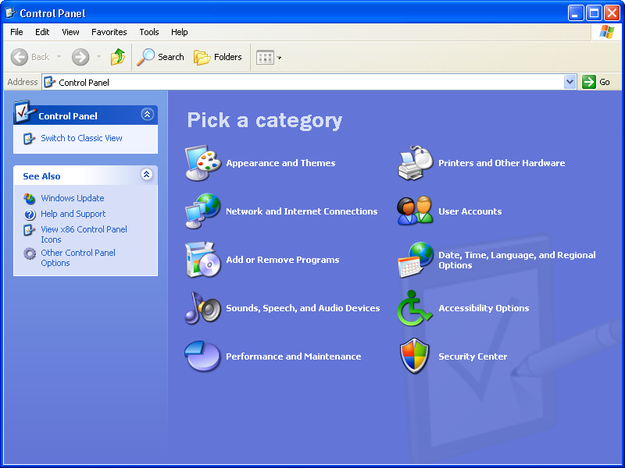
Open the Start menu and click on Control Panel option.
-
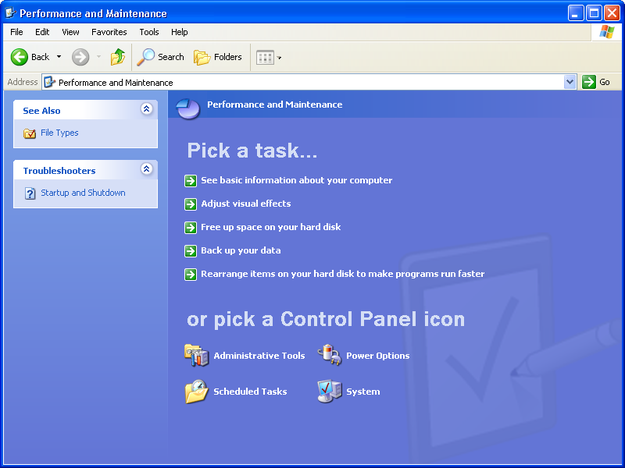
Go to the Performance and Maintenance menu and click on the Power Options.
-
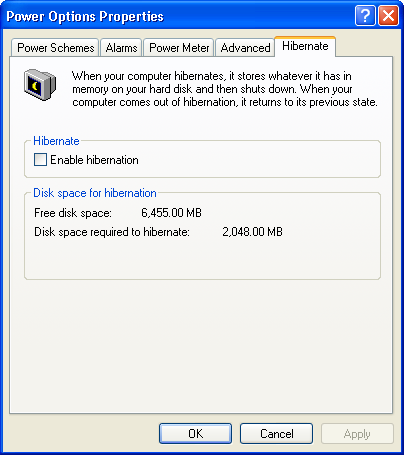
Click on the Hibernate tab and uncheck the box next to Enable hibernation option and apply the changes with clicking on OK button.
-
The hibernation is disabled and hiberfil.sys is removed from the system hard disk.
How to delete hiberfil.sys in Windows Vista and Windows 7
-
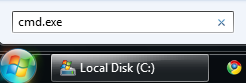
Open the Start menu and type cmd.exe to the Search box.
-
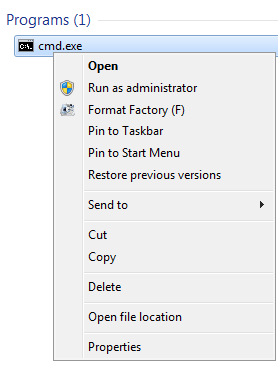
Click the right button on cmd.exe and select Run as administrator option.
-
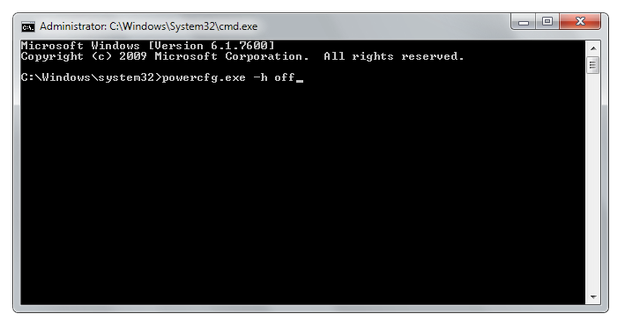
Type powercfg.exe -h off on the command line and press Enter.
-
The hibernation is disabled and hiberfil.sys is removed from the system hard disk.
How to delete hiberfil.sys in Windows 8
-
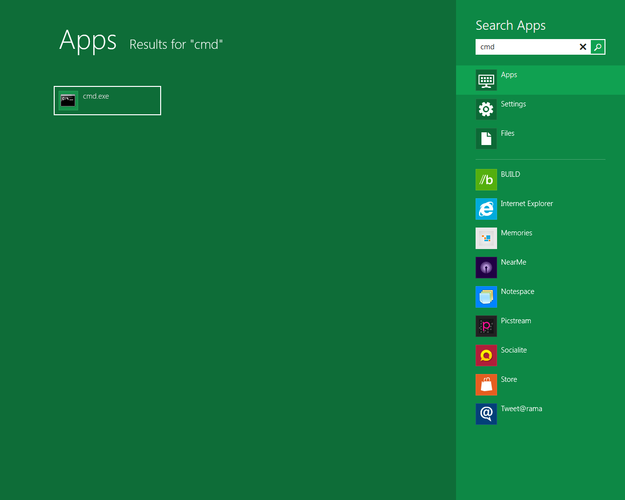
Type cmd in the Metro program manager. After that click right mouse button on CMD.exe tile.
-
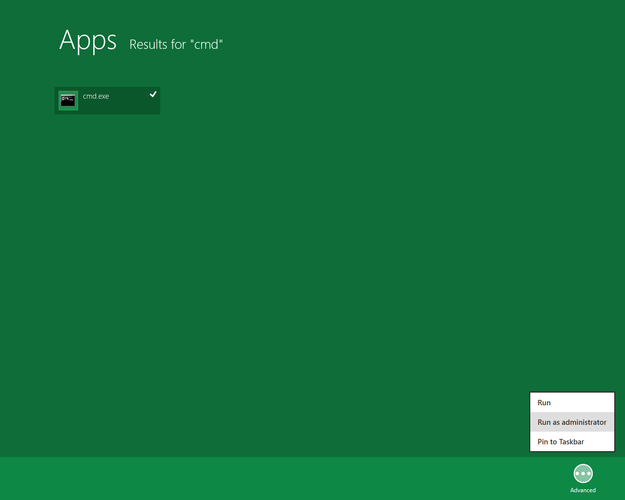
Choose Advanced option in the bottom bar menu and select Run as administrator option.
-
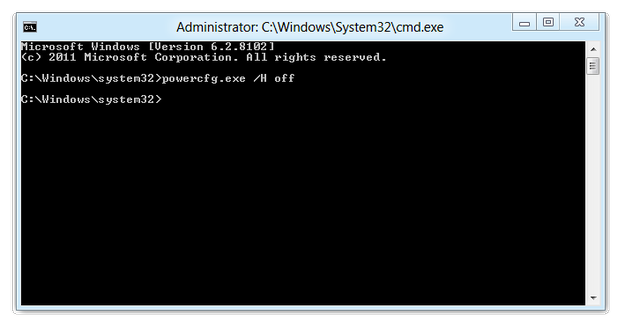
Type powercfg.exe /H off on the command line and press Enter.
-
The hibernation is disabled and hiberfil.sys is removed from the computer.