Language
Related extensions:
The first step is to get yourself an audio/video converter. You can either buy one, or pick one of the free programs available on internet. Just make sure, that the converter you have chosen, is able to convert AVI files to MP4 (iPhone) files.
MyVideoConverter
For our guide we have used the popular MyVideoConverter, a very powerful shareware convertor, that can convert broad array of both audio and video formats. But even if you have chosen other software convertor, the following steps will be pretty similar in most (if not all of them).
Converting AVI to MP4 with MyVideoConverter
- Install your selected converter.
- After successful installation, start your converter.
-
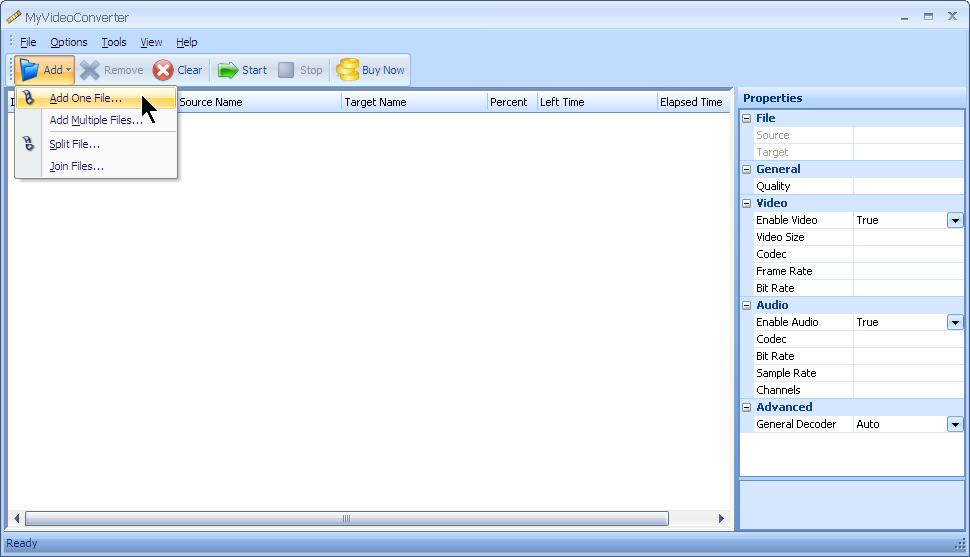
Select/Add your input (AVI) file(s) to the list of files you wish to convert. There is usually some kind of "Add" button, in case of MyVideoConverter its Add -> Add one file/Add multiple files, which opens a new window with various selection options. With the add multiple files option you can queue multiple AVI source files and convert them all at once.
-
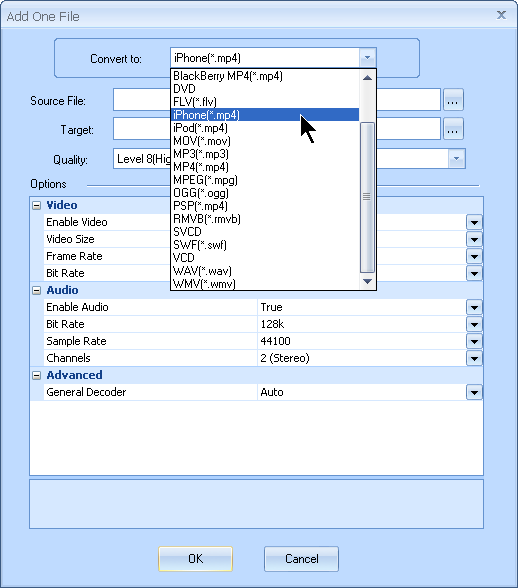
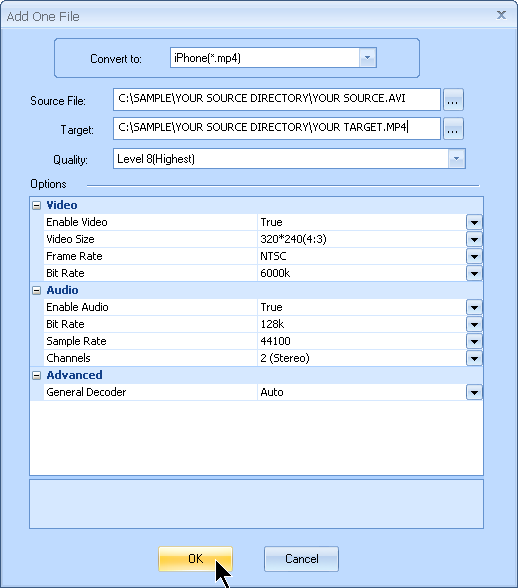
In the new window chose your preferred output file format you wish your AVI files to convert to. There is usually a list of possible output file formats. In MyVideoConverter select the MP4 (iPhone) files in the Convert to: selection box.
-
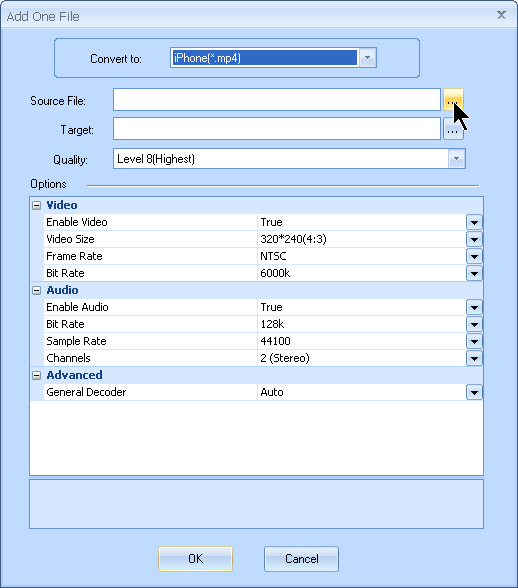
Select the source file, your AVI file, you wish to convert into MP4 (iPhone) file. Simply use the ... browser next to the Source File: box and select your AVI file.
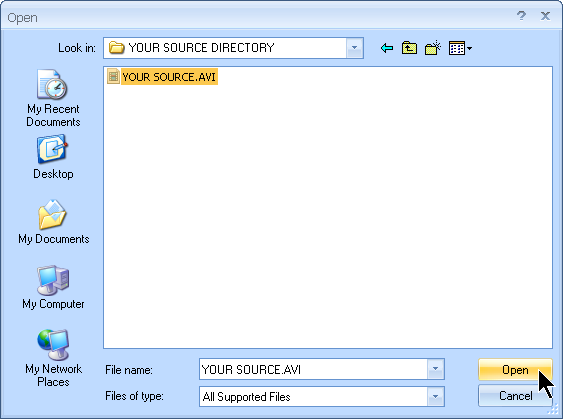
-
By default, the application creates the converted files in the source file directory and uses a predefined file name. But you can choose your own output path and name your converted file. Again in the ... browser next to Target: box, select the folder you wish to place your new MP4 (iPhone) file and also its name.
-
If you wish, you can also tweak various audio-video settings, including quality, bit rate, codecs, size etc., but if you have no experience with it, we recommend to keep the default settings.
-
When you are satisfied with your selected options, click on OK button and your conversion will be added to the queue. You can queue up multiple files and convert them all at once, even to different output formats.
-
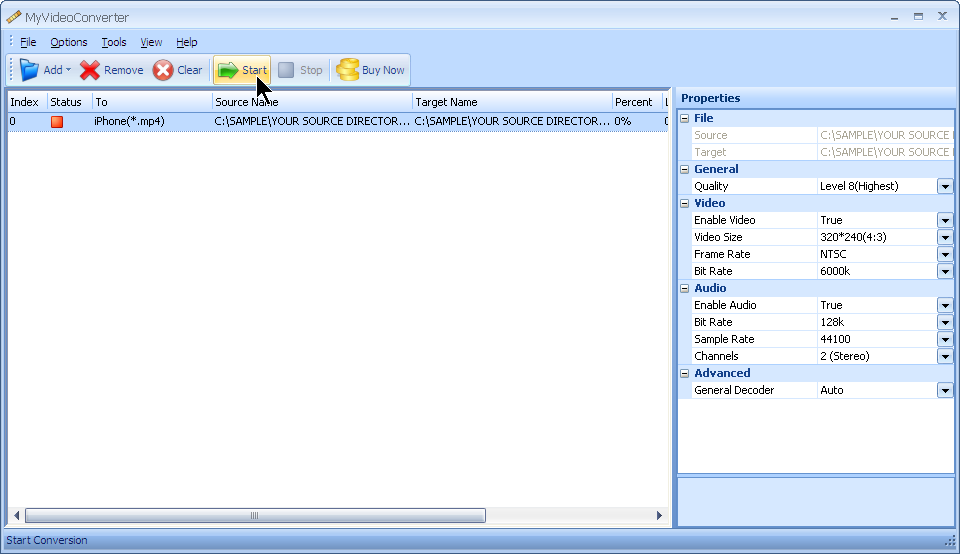
Now you can see the list of your conversions, that will be performed by the application. To start the conversion, simply click on Start button.