
 Language
Related extensions:
Microsoft Windows XP, Vista and 7 (Seven) operating systems contains an autonomy button in Start menu, that is able to switch off your computer with a simple click. In Microsoft Windows 8, and same goes for Windows 8.1, you need to perform FOUR actions to shut down (restart, sleep) a computer.
There is a solution how to simplify the shut down procedure to one simply click and also you can use it for Restart, Sleep and other actions.
Contents:
Create shutdown shortcut in Windows 8
You can also use these instructions to create shortcuts for your apps and files stored in your computer. Windows shortcuts are identified by .lnk file extension.
Open Windows 8 desktop → click by right mouse button on desktop and select New option → Shortcut.
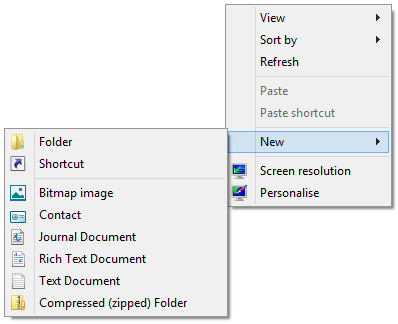
Create shortcut in Windows 8
Type to location box: shutdown /s /t 0 and click on Next button.
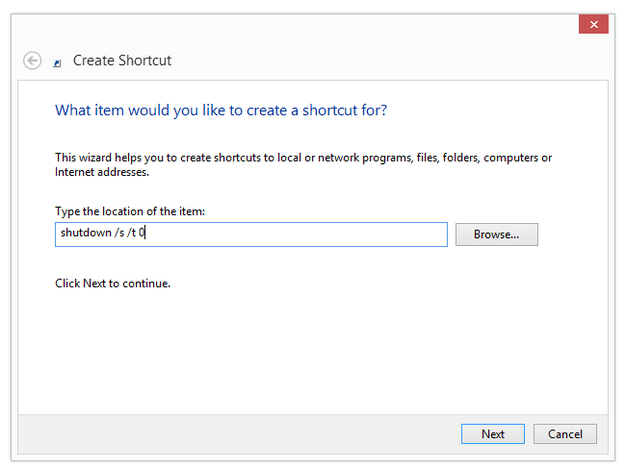
Shutdown command
Type a name of shortcut to text box (for example Shutdown) and click on Finish button.
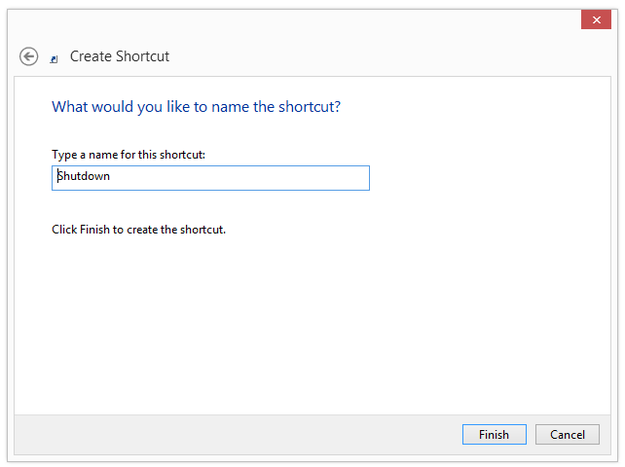
Name of shortcut
Right Click on new Shutdown shortcut and select Properties option.
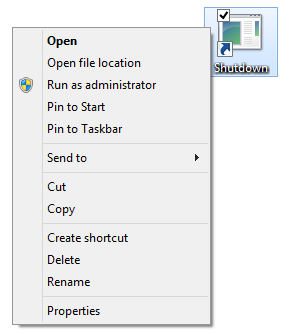
Shortcut properties
Select Shortcut tab and click on Change Icon button.
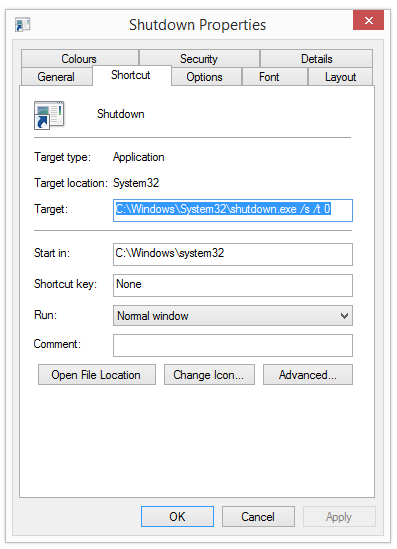
Change icon of shortcut
Select icon from library → Ok button.
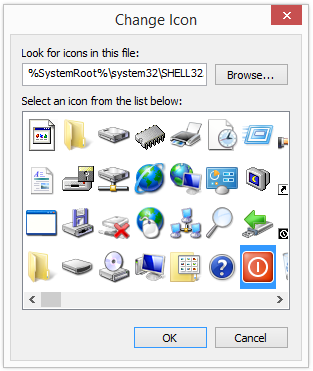
Icon library
Right Click on Shutdown shortcut and select Pin to Start option.
.png)
Pin to Start and Pin to Taskbar options
Your new shortcut is available in Start menu (Metro). You can also pin the shortcut to taskbar on the desktop.
Now you are able to switch off the computer with simple one click on this shortcut in Metro, or on classic desktop.
Microsoft Windows 8 contains a little bug or "feature", which causes, that the keyboard numeric pad is enabled until a user log to Windows. This is annoying, if you have a login password with numbers and have a keyboard with numeric pad. Some users are reporting, that you shut down computer with shut down shortcut created by these instructions, Windows 8 will enable numeric pad on login screen.
Create Restart, Sleep, Hibernate, Lock shortcuts in Windows 8
To create Restart, Sleep, Hibernate, Lock button use the same instructions, but in location box type:
- Restart button: shutdown /r /t 0
- Sleep button: rundll32.exe PowrProf.dll,SetSuspendState 0,1,0
- Hibernation: rundll32.exe PowrProf.dll,SetSuspendState
- Lock PC: rundll32.exe User32.dll,LockWorkStation