
 Language
Related extensions:
 VMware Workstation is one of the most used computer virtualization solution for Microsoft Windows. It helps users to create virtualized computers with Microsoft Windows, Linux, Unix, or BSD operating systems on one physical computer. Parallels Desktop is the same solution but most popular on Mac computers.
If you need to run any Parallels Desktop virtual machine in VMware Workstation you will hit a snag, because VMware Workstation will be not able to open, or import it to its virtual machine format.
However VMware developed virtual machine converter called VMware vCenter Converter Standalone that is able to convert Parallels Desktop virtual machines (.pvm file extension) to VMware Workstation Virtual Machine Disk file format (.vmdk file extension) as well as it is also able to convert other virtual machines from Windows Virtual PC (.vhd), Virtual Server, Microsoft Hyper-V (.vhdx) and from computer backup images created by Acronis TrueImage (.tib), Symantec LiveState (.sv2i), StorageCraft ShadowStor (.spf) etc.
How to run Parallels Desktop virtual machine in VMware Workstation
VMware vCenter Converter Standalone is available on official VMware website for free, you must only fill the registration form. After the download is finished run the installation package. Wait until the installation is finished.
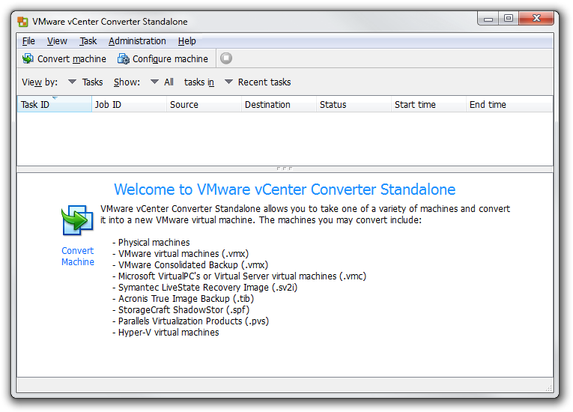
VMware vCenter Converter Standalone main window
Step 1 - Source system virtual machine converting
Run the VMware vCenter Converter → Click the Convert machine option in menu. vCenter Converter will open the Conversion wizard.
In Select source type: menu select Backup image or third party virtual machine option. After that Click on Browse... button and select virtual machine, or image file to convert. In our case Parallels Desktop virtual machine configuration file (.pvs file extension) stored in .pvm container that Windows view as simple directory.
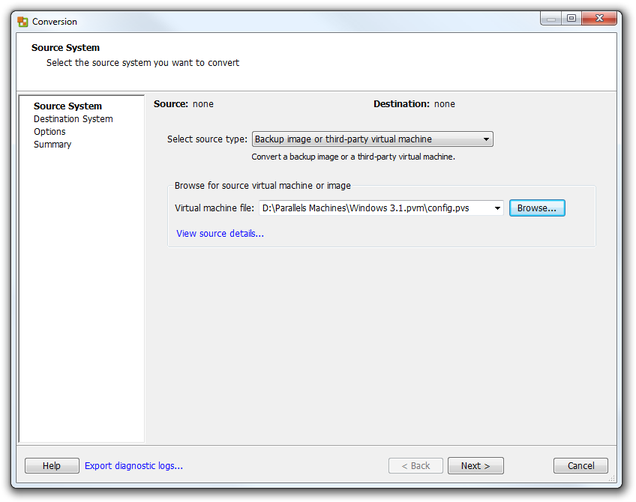 VMware vCenter Converter Standalone Wizard Step 1
After the that click on Next button.
Step 2 - Destination system type (VMware)
In Select Destination type: menu select VMware Workstation or other VMware virtual machine option. In Select VMware product menu select the version of VMware Workstation, which you have installed in your computer.
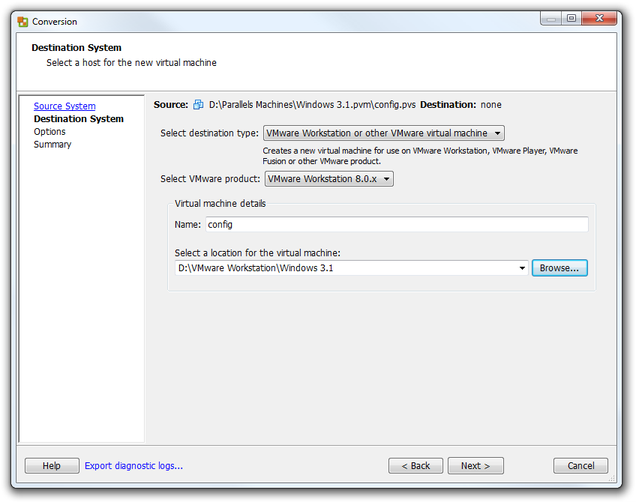
VMware vCenter Converter Standalone Wizard Step 2
Click on Browse... button and Select a location for the virtual machine. Click on Next button.
Step 3 - Virtual machine options and summary
In Options you can change settings of virtual computer. By default, settings are read from the configuration file of the converted virtual machine. However if you want to change virtual computer settings click on blue Edit button next to computer settings groups.
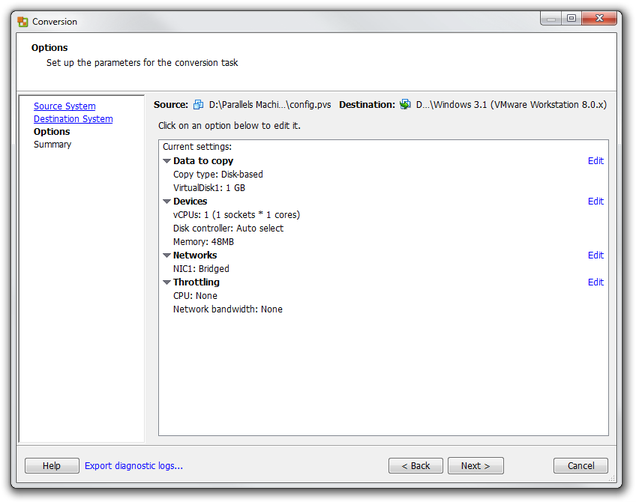
VMware vCenter Converter Standalone Wizard Step 3
When you have finished the settings of the computer click on Next button and vCenter Converter will show the review of conversion parameters.
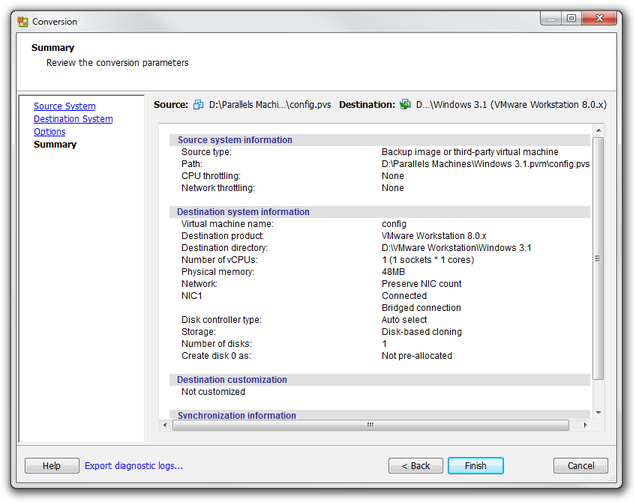
VMware vCenter Converter Standalone Summary
Now click on Finish button and wait until the conversion will be finished.
Step 4 - Run new virtual machine
Run VMware Workstation → Go the File menu → Open... and select VMware configuration file (.vmx file extension) in your converted virtual machine. VMware will import it in its virtual machine library.
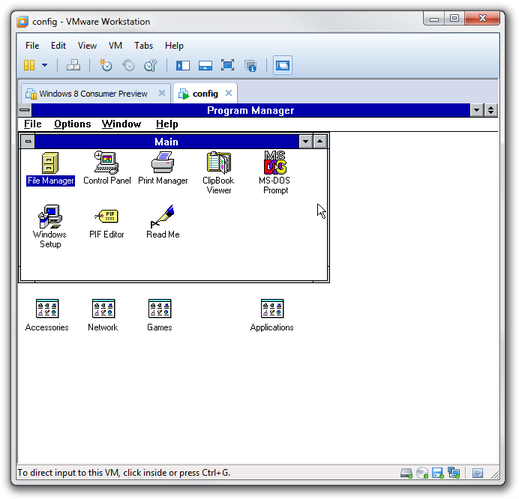
VMware Workstation running virtual machine
Now press the Power on this virtual machine option and wait until the new virtual computer booted.