
 Language
Related extensions:
 Many Windows users would also like to try Mac OS X operating system that runs on Apple computers. There are some ways how to do it, but in our opinion, the easiest one is to install OS X in some virtualization software, like VMware Workstation.
By default, VMware Workstation doesn't officially support virtualization of Mac OS X. However, other third party developers created unofficial update that adds Mac OS X profiles to VMware settings, which allows users to install Mac OS X without Chromeleon, or other Apple Mac boot emulators.
How to run Mac OS X in VMware Workstation
We have tried to run last version of Mac OS X (Mountain Lion - build 10.8.) in VMware Workstation.
Other system requirements to run virtualized Mac OS X are:
Intel dual core processor with Intel VT-x hardware virtualization, 2GB RAM, 15GB free HDD space, NVIDIA, or ATI GPU.
Step 1 - Download and install VMware Workstation
VMware Workstation is commercial software, but you can try fully functional time limited demo version which is available on the official VMware website. It is recommended to download and install Workstation version 8.
Step 2 - Download Mac OS X installation image
We have tried already prepared Mac OS X Mountain Lion virtual machine created by Soul Dev Team. The archive (OS X Mountain Lion 10.8 Retail VMware Image) contains virtual machine with pre-installed Mac OS X and other utilities to customize VMware Workstation. Download it from Soul Dev Team website and unpack archive to your hard drive.
Step 3 - Customize VMware Workstation
Open the archive and go to the VMware Workstation Unlocker - Windows subfolder.
In our case:
C:\Users\Public\Documents\Shared Virtual Machines\OS X 10.8 Mountain Lion Retail VMware Image\VMware Unlocker - Mac OS X Guest\VMware 8.x Series\VMware Workstation Unlocker - Windows
Click the right mouse button on install.cmd script and select Run as Administrator option. Wait until the patch process is finished.
There is an utility available in the archive called Hardware Virtualization Bypasser that allows users without processor with VT-x virtualization, run Mac OS X in VMware. However we tested it on older Pentium D 945 system without success.
Step 4 - Run the Mac OS X in VMware Workstation
Start VMware Workstation. Click on File menu > Open... Navigate to the unpacked Mac OS X archive to OS X 10.8 Mountain Lion subfolder and select OS X 10.8 Mountain Lion.vmx file.

VMware Worksation with imported Mac OS X virtual machine
Click on VM menu > Settings... (also can use Alt+D shortcut). Click on Options tab and check the Guest operating system is set to Apple Mac OS X and Version to Mac OS X 10.7. 64-bit.
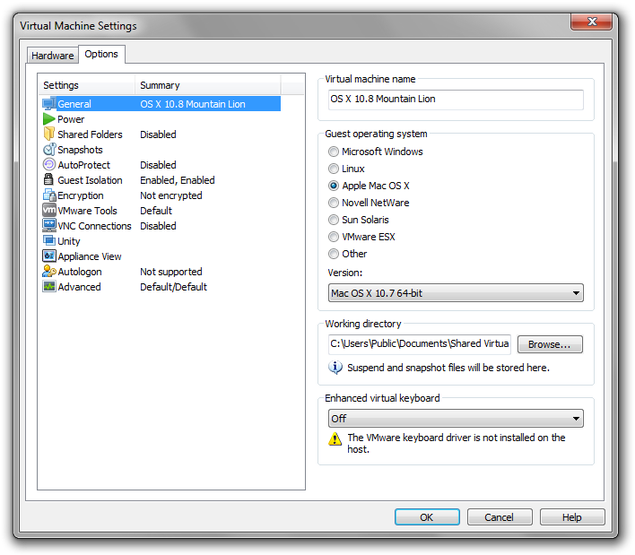
VMware Workstation General settings for Mac OS X
Click on Hardware tab. Set the memory settings to one half of RAM installed in computer. In Processors settings set the number of processors and cores per processor (mostly one processor and two, four or eight cores). These settings greatly affect the virtual machine performance. Now click on OK button.
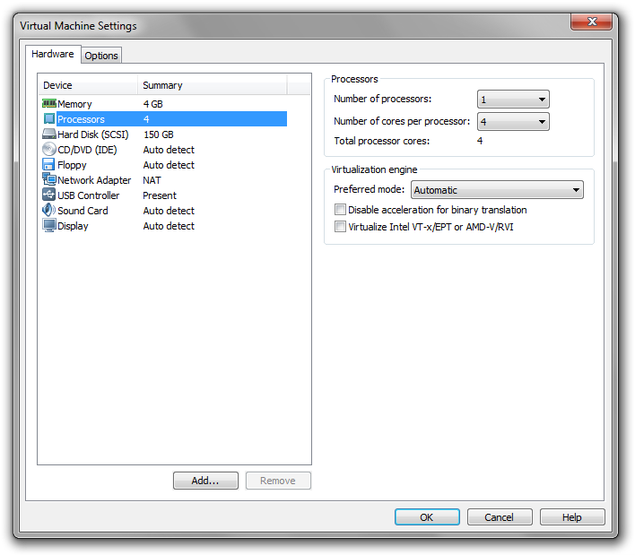
VMware Workstation Hardware settings for Mac OS X
Click on Power on this virtual machine option (also Ctrl+B shortcut). After few seconds you will se a warning window.
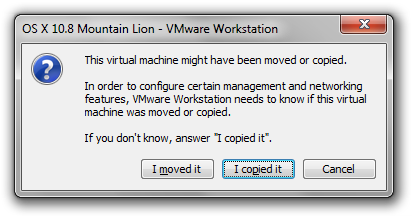
VMware Workstation warning window
Click on I copied it button and wait until the Mac OS X boot up to Welcome wizard, where you can set up your virtual Apple Mac computer (keyboard settings, localization, time settings, Apple ID, User account etc.).
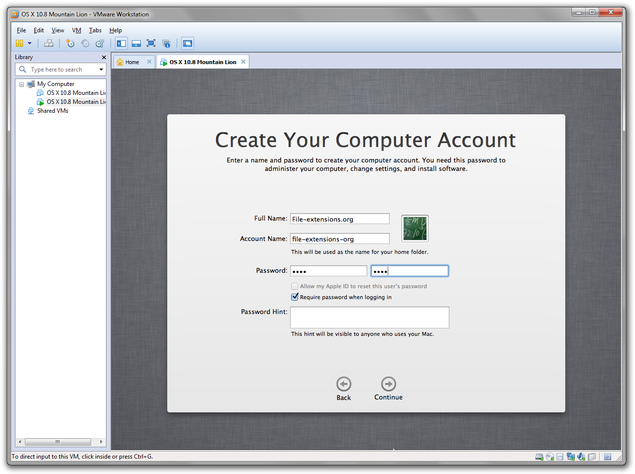
VMware Workstation Mac OS X setup
Step 5 - Install VMware Tools
After you have set up the system, it is time to install VMware Tools, which will improve performance of the system and allow you to set monitor resolution higher than 1024x768.
Click on VM option in upper menu → Settings... → CD/DVD (IDE) option → Use ISO image file option and after that on Browse... button. Navigate to Mac OS X unpacked archive to Tools subfolder and select darwin.iso disk image.
In our case:
C:\Users\Public\Documents\Shared Virtual Machines\OS X 10.8 Mountain Lion Retail VMware Image\VMware Unlocker - Mac OS X Guest\VMware 8.x Series\Tools
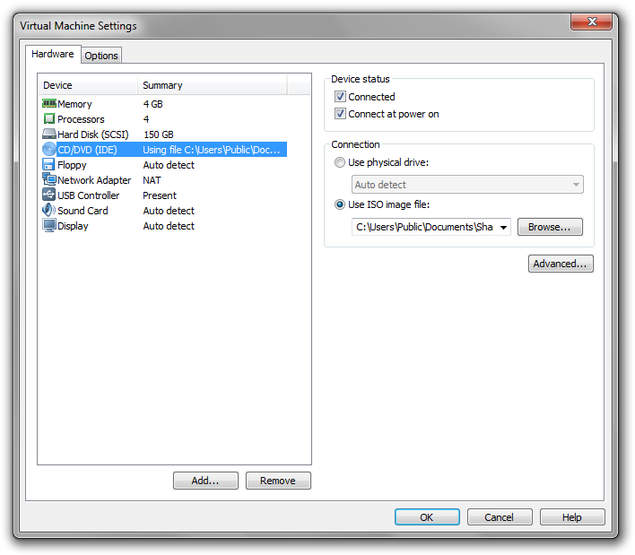
VMware Workstation CD/DVD settings for Mac OS X
VMware Tools installation will be opened in the system. Double click on Install VMware Tools and install them to system. After the installation is finished restart the virtual computer (Click on Apple logo in upper left corner > Restart...).
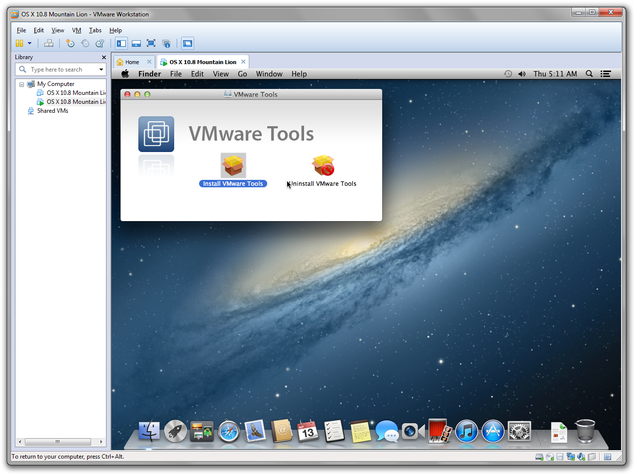
VMware Workstation VMware Tools installation in Mac OS X
And that's it! Your virtual Apple Mac computer is prepared to use and you can start using and testing all Mac OS X apps.