
 Language
Related extensions:
Introduction
Subtitles are great way to watch movies in their original language, but sometimes it is pretty hard to find some and go through subtitle websites can be pretty time consuming. Luckily, one of the most popular media player on market - the VLC Player - now also has its own plugin that allows users to quickly find subtitles for their movies.
Content of the article
- VLSub extension for VLC player
- How to install VLSub extension to VLC player
- How doues VLSub work in VLC player
VLSub extension for VLC player
This extension is basically a small lua script which adds a new function to VLC player.
VLC Media Player from version 2.0.3 and later contains VLSub plugin in its installation package. The subtitles download option in Windows version of VLC Media Player is available in View menu → Download Subtitles.
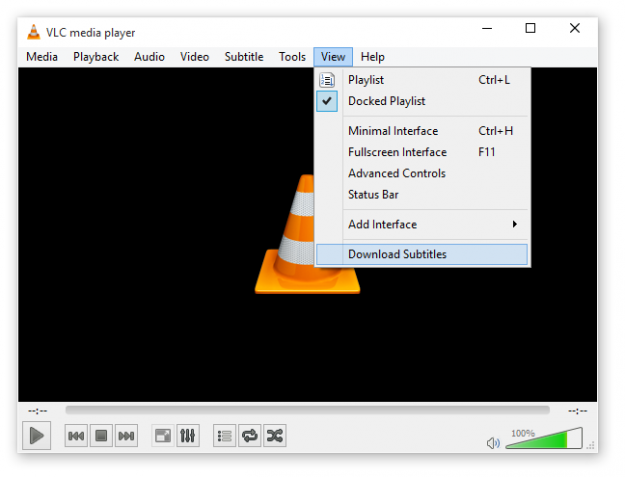
VLC Download Subtitles option
If you have older version of VLC Player then 2.0.3. read the section How to install VLSub extension to VLC player.
If you have version 2.0.3. and later you can skip How to install part and go to section How does VLSub work in VLC player?.
How to install VLSub extension to VLC player
Simply download the vlsub.lua from developer's website on GitHub or VLC addons site and copy it to a specific folder in your VLC directory.
Here is the list of locations based on your operating system:
- Windows (all users): %ProgramFiles%\VideoLAN\VLC\lua\extensions\
- Windows (current user): %APPDATA%\vlc\lua\extensions\
- Linux (all users): /usr/lib/vlc/lua/extensions/
- Linux (current user): ~/.local/share/vlc/lua/extensions/
- Mac OS X (all users): /Applications/VLC.app/Contents/MacOS/share/lua/extensions/
- Mac OS X (current user): /Users/%your_name%/Library/Application
You can also find VLSub in add-on section on videolan.org website, where you can download it in a Windows 7 installer package. The archive contains a simple *.bat file with which you can install VLSub to your VLC player.
- Extract the *.bat file from the archive
- Double click on it to install VLSub for the current user only, execute with " -user" option
- Start VLC then click on "VLSub" at the bottom of the "View" menu to open the VLSub window
How does VLSub work in VLC player?
When the script is copied in proper location. A new option will appear in the view tab. Clicking on-it will launch the VLSub window.

New menu option added when VLsub is installed.
If you have a video playing, you can search for subtitles by its hash. Otherwise, you can simply search for subtitles by name and pick the one you think is the proper one.
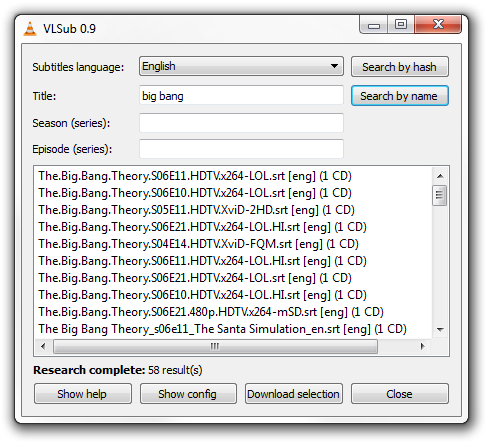
VLsub main window screenshot.
Then just simply download the selection and it will load up to your movie. And that's it. Enjoy subtitles.