
 Language
Related extensions:
TIP: Subtitles for your movies and tv shows
 Watching movies or tv shows is very popular occupation for many computer users. If your mother tongue is not English, and your movie is not localized to your language you will need subtitles to understand it, especially your language skills are not the best.
Subtitles are a very common and popular thing on internet, however, whilst for experienced users have no problems in these matters, the less savvy computer users can be a little overwhelmed by the needs to successfully watch movies with subtitles.
Judging by the amount of questions we get about subtitles files, how to see subtitles, how to watch movie with subtitles, how to use subtitles, subtitle guide, displaying subtitles, how to convert movie subtitles etc., we have decided to make a little subtitle guide for our visitors so even the most casual computer users can easily play movies with subtitles.
This article covers the basics about subtitles in general, how to find subtitles, basic hints for editing and converting subtitles and finally describes how you can watch movies with subtitles using the popular and easy to use VLC player, which is available for both Windows and Mac users, as well as for mobile platforms.
About subtitles files
Generally, subtitles are very small text files that contain text that is shown on certain time stamp while the video is played using a media player.
There exist dozens of different file types, but you will most likely encounter mainly two types, e.g. SRT subtitles and SUB subtitles. So whenever you are looking for subtitles, you should look for these two formats, as they are widely supported in media players.
Some subtitles are already embedded in the video and you do not need to download new one, but especially for older movies you have both the video and subtitles in separate files.
Searching for subtitles
If your movie does not come with subtitles already (check the folder for any subtitle files), or they are in a different language than you desire, you will have to scour the web for the ones you need.
There are many sources on internet that contain thousands of subtitles in different languages for great number of both old and new movies. Here is a list of the commonly known and largest databases:
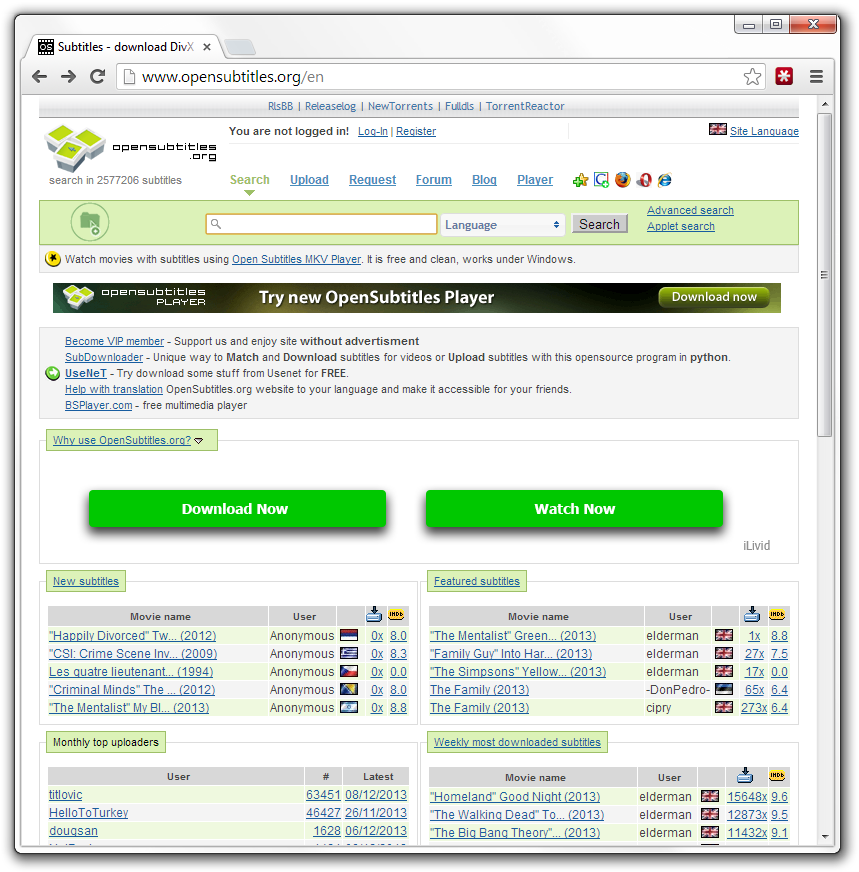 Typical subtitle database - opensubtitles.org
Of course, other similar websites dedicated to subtitles might exist, but the thing is - if you do not find the subtitles you need on these sites, you won't find them most likely at all.
When downloading subtitles, take great care about their name as it should match your video. You should always try to find subtitles exactly matching your videos for best compatibility.
VLC player offers a special plugin that can automatically look for subtitles for currently played videos either by its file name or hash.
Working with subtitles
Sometimes you might not find exactly the right subtitles you need. They might be for the same movie, but for different video, which can cause all kinds of trouble like desynchronized subtitles with video, missing subtitles (extended movie version vs. normal one) etc.
One of the most common situation is, that you find subtitles labeled CD1, CD2 etc. whilst you have only one video file. You might also encounter subtitles in different format than your media player supports, and thus need to convert them to another, more common format.
The solution is in various subtitle editing or syncing tools with which you can usually quickly fix all your troubles.
You can find more information about making, editing or converting subtitles in another of our older articles labeled How to create video subtitles.
Watching movies with subtitles
We have picked VLC media player as our choice for this article, simply because it's easy to use, it works on all platforms, even mobile ones, it automatically looks for updates, has all the codecs you need without knowing what they are, and well it's free. So download and install it, if you haven't done so already.
With that said, the principle about subtitles is pretty much same in all media players, so feel free to use whatever program you deem worthy.
Opening subtitles in VLC player
Using subtitles is generally very easy. When you have both the movie and the subtitle, simply start the playback of the movie and click on the Subtitle → Add Subtitle File function in VLC player. Locate and select your subtitles and open them. Now they should be visible during playback.
Same thing might also be done by right-clicking somewhere on the screen of the movie and selecting the Same Subtitle → Add Subtitle File function from the popup menu as you can see on the screenshot below.
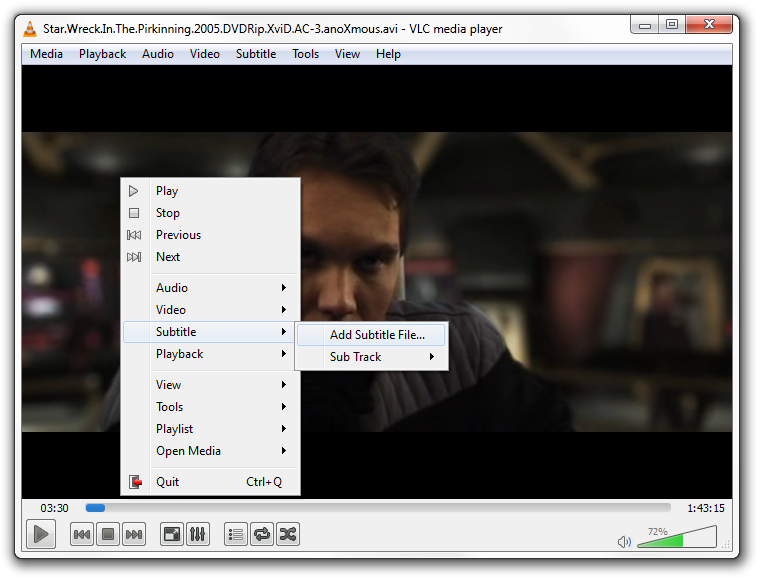
Adding subtitles to a movie played using VLC
Changing subtitle tracks in VLC player
For movies that already have subtitles you can check the subtitle tracks much like you can do with both video and audio tracks. By right-clicking on the video screen and selecting the Subtitle → Sub Track option you check the embedded subtitles and change them as you can see on the following screenshot.
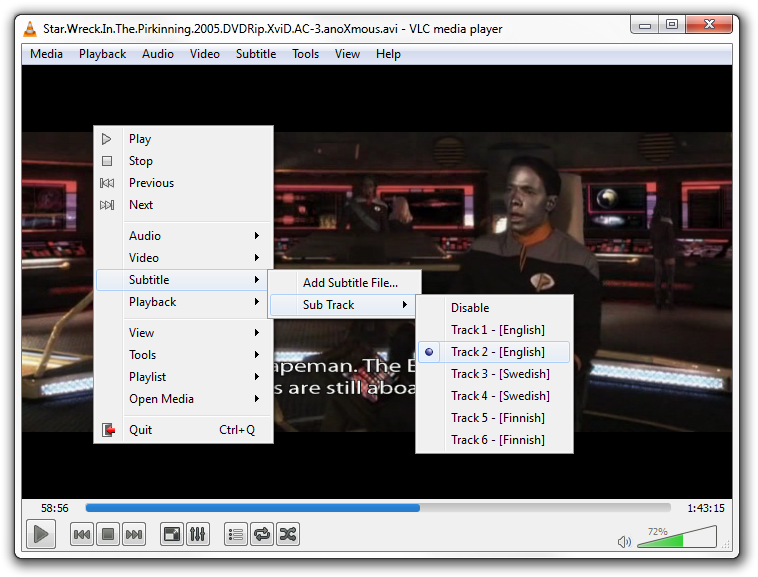
VLC player multiple subtitle track option menu
If you put video and subtitle file of the exact same file name in the same folder, the subtitles are loaded automatically when you open the movie. This works in all media players, not just VLC. So it is always good idea to rename subtitles if they are not of the same file name.