
 Language
Related extensions:
VLC for Mac, VLSub subtitle plugin
If you you love movies in original version and you are not good in foreign languages, you will be in need of subtitles in your language. They are available on various subtitles websites, but it can be very annoying at times to check these servers and find the right one.
Luckily, the popular VLC Media Player supports plug-ins and one of them called VLSub can help you to find subtitles directly in VLC Player. VLSub is available on developer's GitHub, or VLC addons website.
VLC Media Player from version 2.0.3 and later contains VLSub plugin in its installation package. It is also available in VLC upper menu → Extensions option.
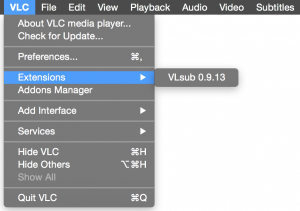
VLC Extensions option
If you have older version of VLC Player then 2.0.3. read the section How to install VLSub plug-in.
If you have version 2.0.3. and later you can skip How to install part and go to section How does VLSub work in VLC Media Player for Mac?.
How to install VLSub plug-in to VLC Media Player for Mac
There are two ways how to install VLSub plug-in to VLC Media Player for Mac.
At first download the .zip archive with VLSub to your Mac. Open the archive and copy the vlsub.lua file to clipboard (CMD+C shortcut).
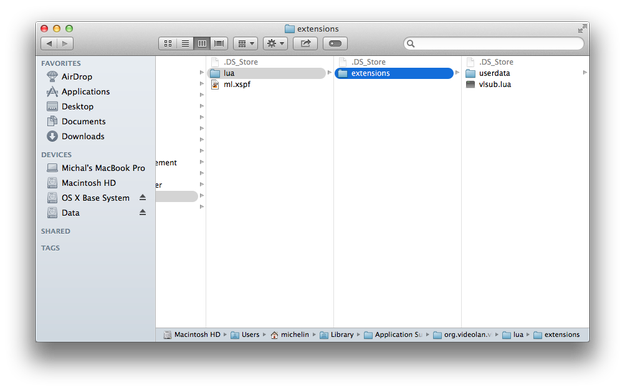
If you want to install VLSub for only current user on your Mac open Finder, or other file manager and go to the:
/Users/%your_name%/Library/Application Support/org.videolan.vlc/lua/extensions/
and paste the vlsub.lua file to this folder.
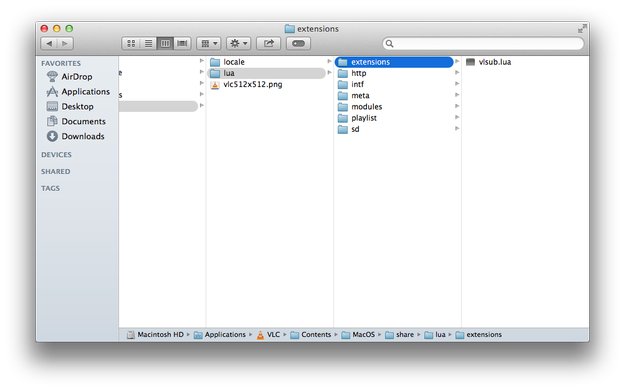
If you want to install VLSub for all users of your Mac, copy vlsub.lua file to clipboard → open Finder → Applications folder.
Right click on VLC app and select Show Package Contents from menu.

Go to the:
Contents/MacOS/share/lua/ → create folder called extensions → open it and paste vlsub.lua file here.
How does VLSub work in VLC Media Player for Mac?
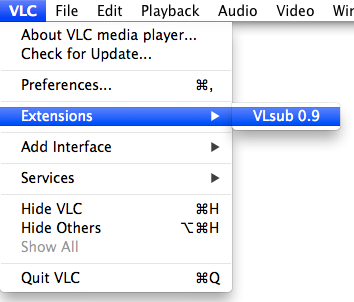
Open a movie in VLC Media Player. If you want to search subtitles go the VLC upper menu → Extensions → and click on VLsub option.
Now you can fill the Title: box and search for subtitles by name, or by hash. You can also set the subtitles language, or fill Season/Episode boxes, if you search for subtitles of TV shows.
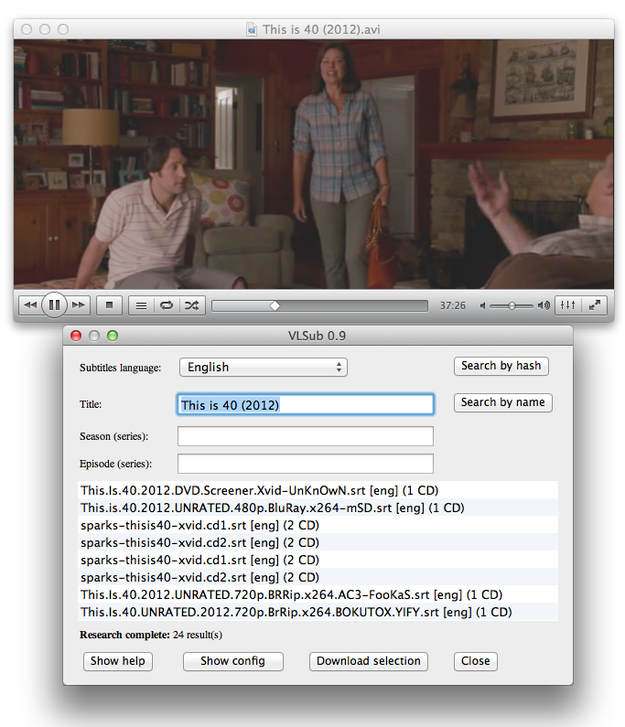
Select subtitles and click on Download selection button. VLSub will save subtitles to the same folder, where is stored the movie and view it in VLC Media Player.