
 Language
Related extensions:
 VirtualBox is a complex open source virtualization suite for various platforms used mostly on Unix-based systems. Even though it is also available for Windows operating systems, Windows users prefer more user-friendly Virtual PC, which is a downloadable part of Windows 7 and 8 operating system and is also available as stand alone software for Windows XP or 2000.
Unfortunately, default VirtualBox Virtual Disk Image (VDI) hard drive format is not supported by Virtual PC. However, you can convert VDI disk image to default Virtual PC's VHD and prepare a new Virtual PC machine with system and data stored on converted VDI hard drive. And we will show you how.
Content of the article is divided into two sections:
- Convert Virtual Disk Image to Virtual Hard Drive
- Create a new virtual machine in Microsoft Virtual PC
Convert Virtual Disk Image (VDI) to Virtual Hard Drive (VHD)
VirtualBox contains command line utility called VBoxManage, with which you can convert VDI files to VHD file format. It is stored in the same directory as VirtualBox (by default \Program Files\Oracle\VirtualBox).
At first you need to remove VDI virtual hard drive from VirtualBox Virtual Media Manager. Open it in File menu → Virtual Media Manager. Click the right mouse button on virtual hard drive that you want to convert and click on Release option.
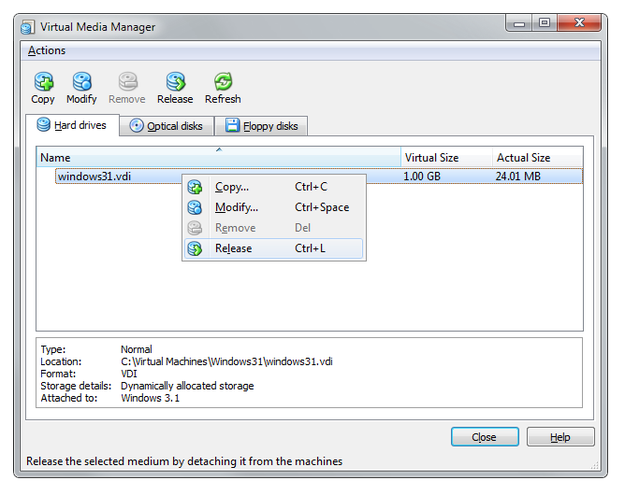
VirtualBox Virtual Media Manager release virtual disk
Once again click right mouse button on the VDI file and select Remove option.
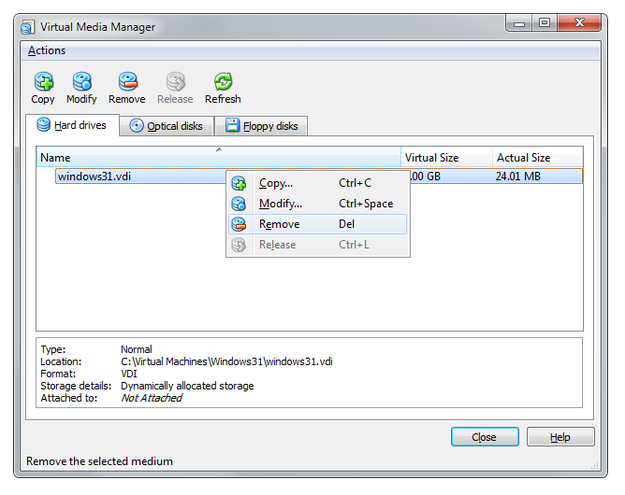
VirtualBox Virtual Media Manager remove virtual disk
Now you you need to run the Command line (Terminal, Bash in other operating systems), navigate to the directory with VirtualBox and type:
vboxmanage clonehd path:\soruce_disk.vdi path:\target_disk.vhd --format VHD
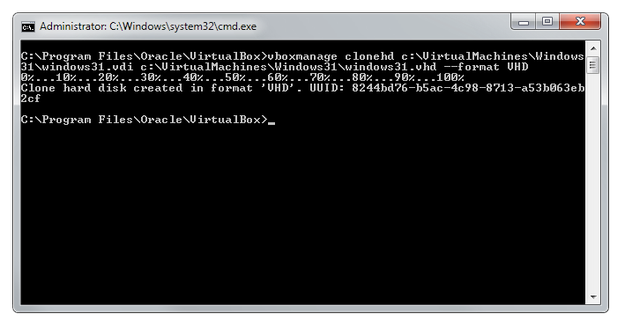
Windows command line using vboxmanage command
VboxManage will create a clone of your virtual VDI disk in Virtual PC's VHD format to directory, which you specified in the command.
Create a new virtual machine in Microsoft Virtual PC
Now you have your VDI disk converted to Microsoft's VHD virtual disk. But if you want to run the system stored on VHD disk you need to create a new virtual machine in Virtual PC.
Start Virtual PC in a computer and click on New... button.
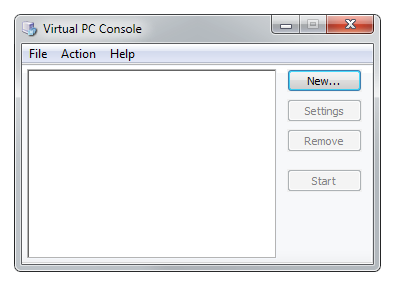
Microsoft Virtual PC Console
Virtual PC will start a Virtual Machine Wizard. Select Create a virtual machine option and click on Next button.
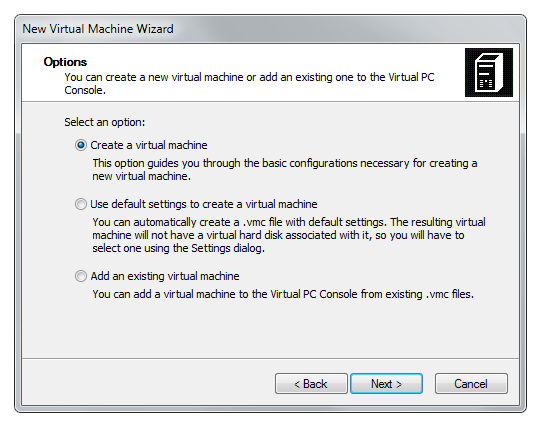
Virtual PC Wizard create new virtual machine
Set the virtual machine location and name. Click Next button.
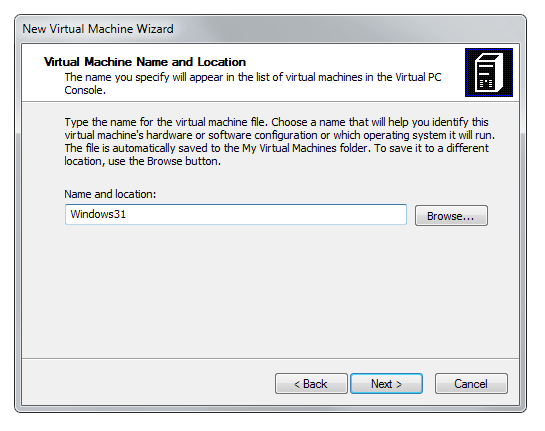
Virtual PC Wizard set location and name
Select the OS type (If the system on VHD disk is not in the list select Other option). Click Next button.
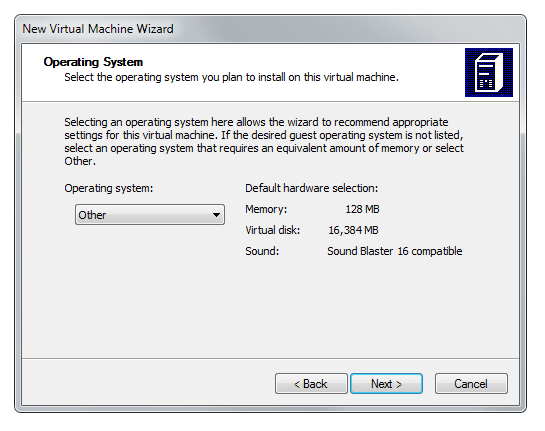
Virtual PC Wizard operating system settings
Set the RAM size (ideal settings for most virtual machines is a half of physical memory).
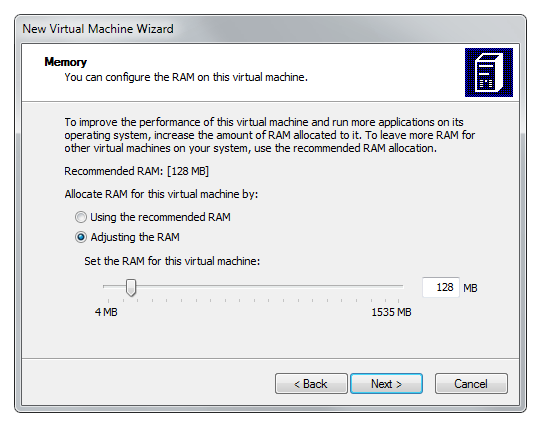
Virtual PC Wizard RAM settings
In Virtual Hard Disk options select an existing hard drive option and click Next button.
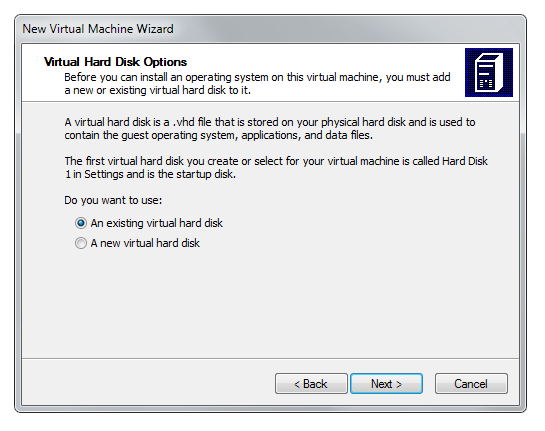
Virtual PC Wizard Hard Disk options
Navigate to the folder, where Virtual Hard Drive (.vhd file extension) is stored. Click the Next button. The setup of new Virtual Machine is finished and Virtual PC Wizard will be closed.
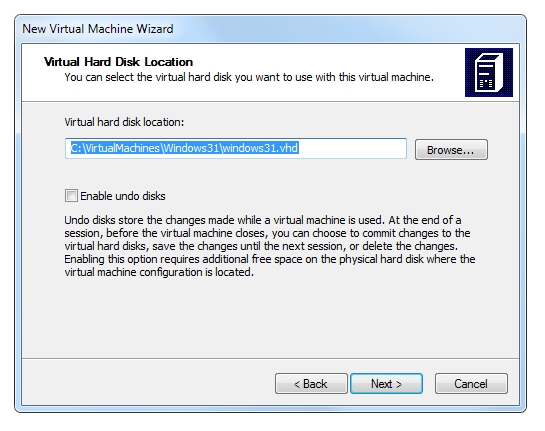
Virtual PC Wizard Virtual Hard Disk location settings
Now click on Start button in Virtual PC Console and wait until the virtual system boot up.
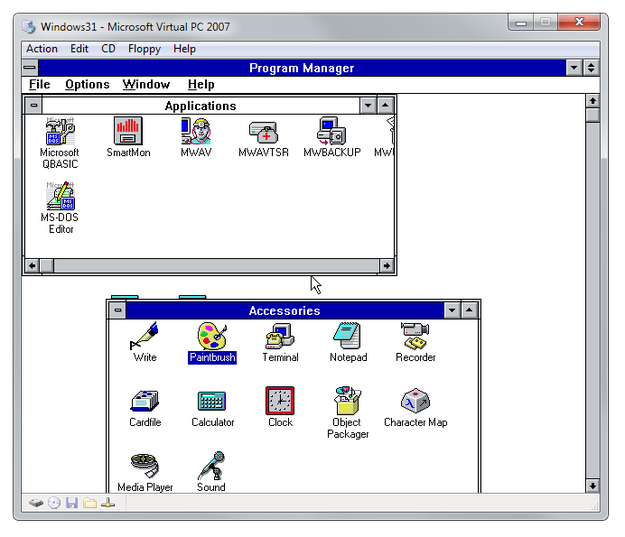
Windows 3.1 running in Virtual PC
Windows Vista, Windows 7 and Windows 8 are also able to mount VHD files as physical hard drives. Here are guides How to mount VHD in Windows 7 and Vista and How to mount VHD in Windows 8.