
 Language
Related extensions:
Introduction
 If you have a large number of picture images, or digital photos that you need to be convert, resize, edit or share, it can be very time consuming to do it one by one. However, there exist utilities, which are able to help you do this task very quickly.
In this article, we will introduce you one of the most powerful picture image manager and editor called XnView that is able to view, convert, edit or otherwise organize pictures on both Windows or Apple Mac computers. It is also available for Linux as well as other platform.
How to convert and resize large number of pictures with XnView on Windows
Step 1 - Download and install XnView
XnView supports huge group of graphics file formats (File-extensions.org registers more than 560 file extensions with XnView). The program is available in 44 languages (language packs are distributed in installation package). It is free when used for non-commericial purposes. You can download it from it's official website.
Step 2 - Convert and resize pictures in XnView
When you start XnView in your computer, it will be launched in it's default browser mode. Navigate to the folder, where your digital pictures are stored.
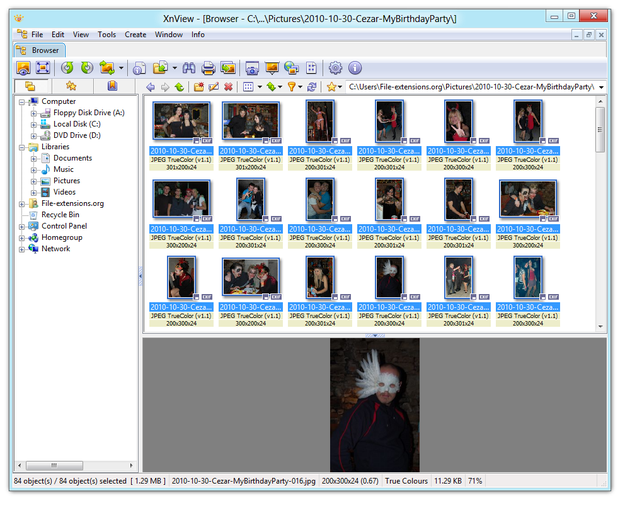
XnView picture image browser
Select pictures to group with your mouse. Click on Tools options in Top menu and select Batch Processing... option (also can be used Ctrl+U shortcut).
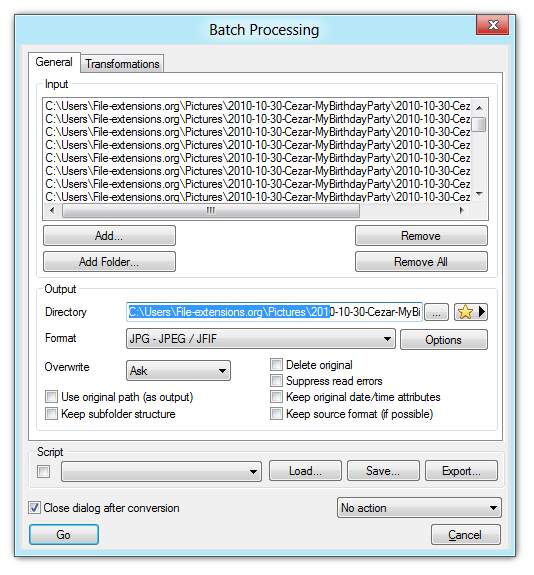
XnView picture image batch processing general settings
Now you are in Batch Processing window. In the General tab you can select output directory for modified pictures and also output format of the pictures (JPG, PNG, TIF, BMP and many more).
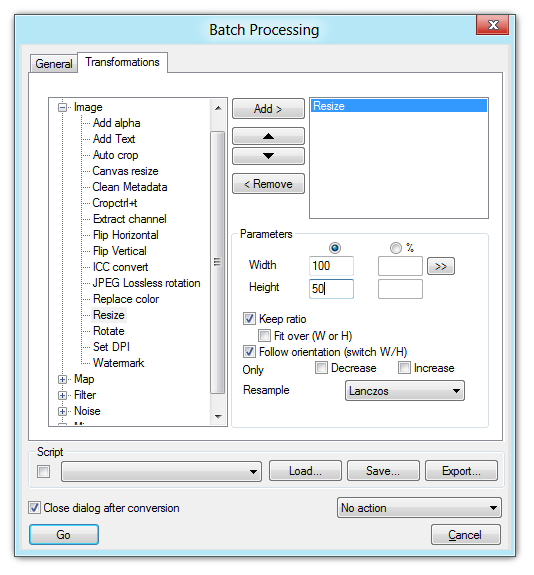
XnView picture image batch processing transformations settings
Click on Transformations tab → select Resize option → Click on Add > button. Now set new width and height parameters of pictures in pixels or in percentage.
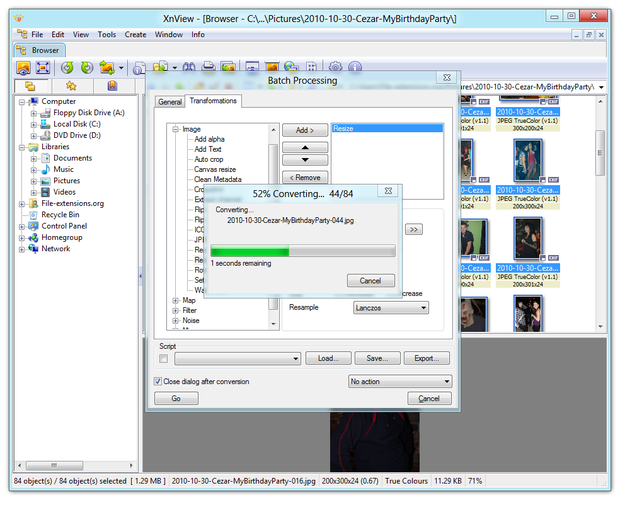
XnView transformation process
Now Click on Go button and wait until conversion and resizing process is finished. Modified pictures will be stored in output folder, which was set in Batch Processing General tab.