
 Language
Related extensions:
 The BIN (also known as .BIN/.CUE) file format is one of most used image file format to store CD/DVD disk images on Windows computers supported by various burning and disk image managing applications.
Vice versa, Apple Mac burning applications and other disk utilities usually don't support BIN image file format. However, they are able to work with ISO disk images that are also supported by wide range of applications through operating systems and platforms.
Our short guide will introduce you how to convert BIN disk images to ISO disk format and open it on Apple Mac computers.
How to convert BIN image to ISO disk image file format with AnyToISO
For our purpose we have picked AnyToISO, an easy to use disk image converter developed by CrystalIdea Software. It is distributed in two versions, Lite and Pro. Lite version is distributed as a freeware, but it can't deal with disk images greater than size 870 MB.
Step 1 - Download and install AnyToISO for Mac
AnyToISO is available to download on CrystalIdea's website. It is distributed in ZIP archive that contains AnyToISO.app - a Mac application package file. Extract .zip archive and copy .app file to your Applications directory.
Step 2 - Convert .bin file to .iso file with AnyToISO
Open and run AnyToISO and click on File Extract/Convert to ISO tab.
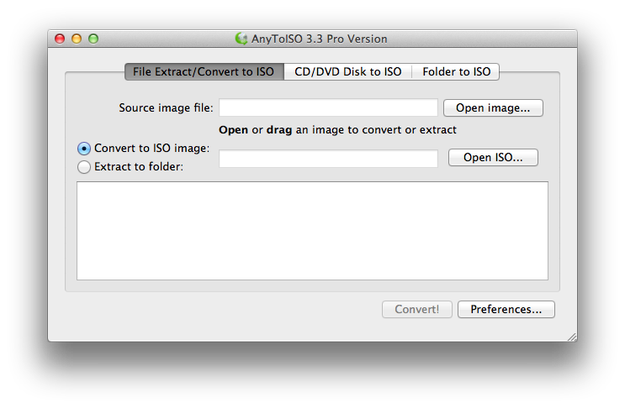
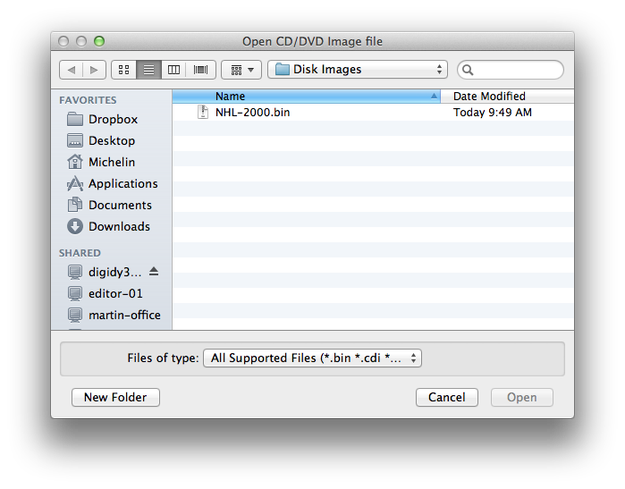
Click on Open image... button and select BIN disk image (.bin file extension).
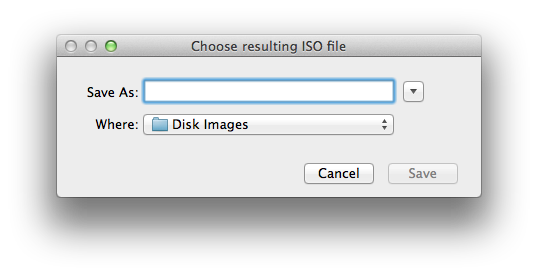
Click on Open ISO... button and set the name of .iso file and directory where the new file will be stored.
Click on Convert! button and wait until the conversion is finished. 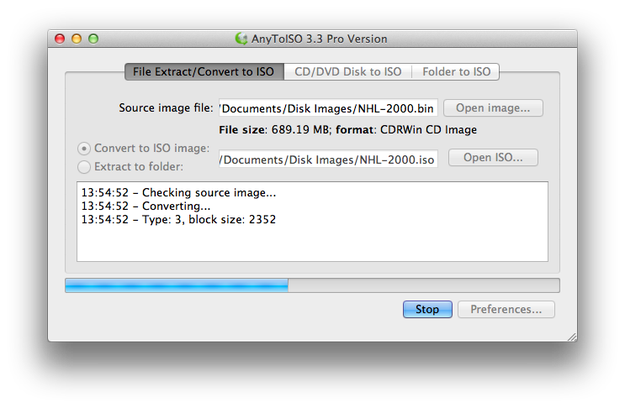
Now you will be able to mount ISO disk image to with DiskImageMounter utility to Mac OS X Finder.
How to convert BIN image to ISO disk image file format with BinChunker
BinChunker (also known as Bchunk) is command line utility for Mac and other Unix based operating systems that is able to convert BIN images to ISO disk file format. The last version 1.2 is available with compiled graphical user interface and you don't need to use Terminal.
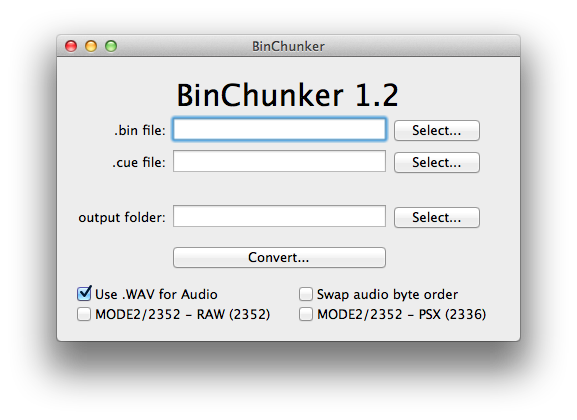
Step 1 - Download and install BinChunker for Mac
BinChunker is distributed as a ZIP archive. Extract bchunk-osx.app file from .zip archive to Applications directory.
Step 2 - Create .cue file
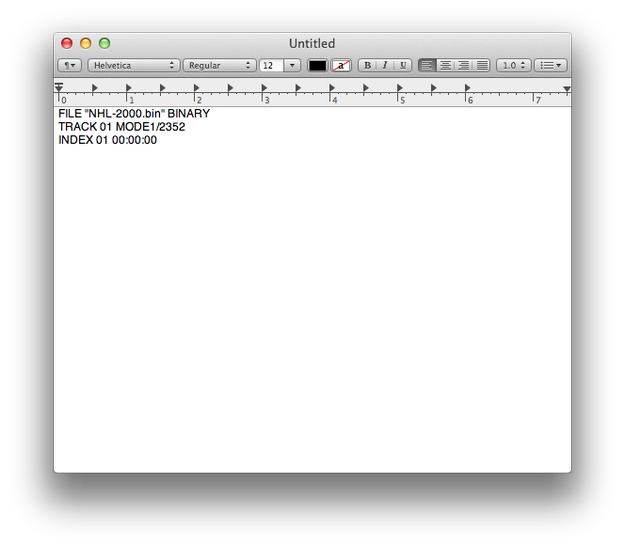
BinChunker needs a CUE sheet file related to BIN disk image to perform a conversion to ISO. CUE sheet stores metadata about optical disk tracks. It is stored in simple text format and use .cue file extension. To create it open the TextEdit and type, or paste these information:
FILE “nameofimage.bin” BINARY
TRACK 01 MODE1/2352
INDEX 01 00:00:00
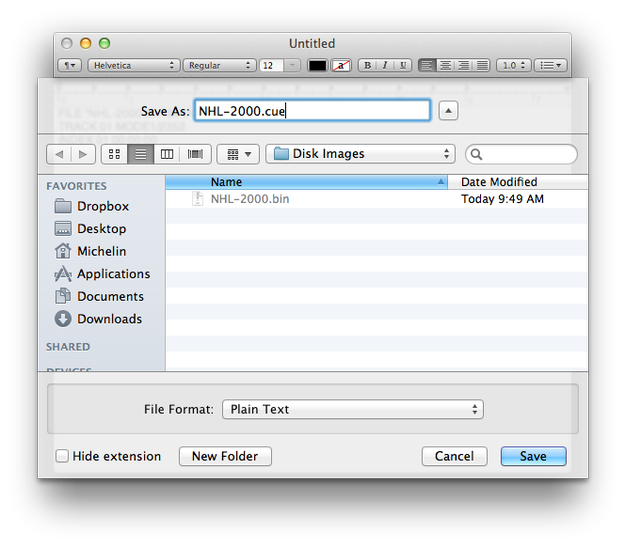
Go to the TextEdit File menu → Save... Navigate to the directory, where is stored .bin image, select File Format: Plain Text and Save As: "nameofimage.cue".
Step 3 - Convert .bin to .iso file with BinChunker
Start BinChunker. Click on Select... button next to .bin file text box and select .bin disk image file → Click on Select... button next to .cue file text box and select the .cue sheet file related to .bin file → Click on Select... button next to output folder box and select folder where will be stored a new ISO disk image.
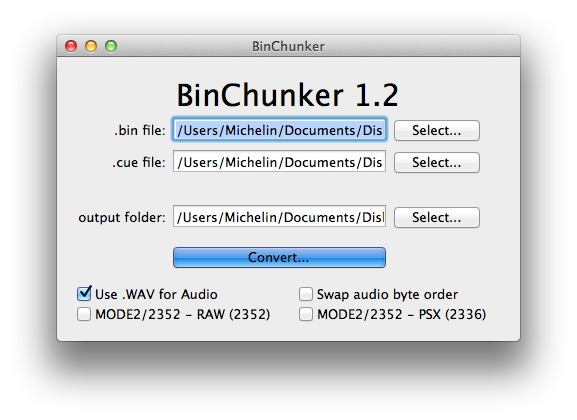
Click on Convert... button and wait until the converting is finished. Now you can mount ISO disk image by DiskImageMounter to Finder, or burn it on optical disk.