
 Language
Related extensions:
Since Windows 8, the operating system has native capability of mounting ISO files, hence information in this article are outdated and related to previous versions of Windows.
 ISO disk image is one of the most popular disk binary file format used to store data from CD/DVD/Blu-ray media. It is a standard supported by all current burning programs. Windows Vista and Windows 7 operating systems can also burn ISO disk images on optical media.
However, Windows is not able to natively mount ISO images as virtual drives. The only solution is to a install third party utility, like Daemon Tools that can easily mount ISO images to a virtual drive.
Step 1 - download and install Daemon Tools
Download Daemon Tools from its website. It is distributed in various editions, but to mount disk images to system a free Daemon Tools Lite is enough. Run installation package and wait until the installation process is finished. After that you must restart the computer.
Step 2 - Mount disk image to Windows
After the reboot Daemon Tools will create new virtual optical drive in system.
Now open Daemon Tools from Start menu. Daemon Tools will open Image Catalog, where you can manage your disk images and mount them to virtual disk drive.
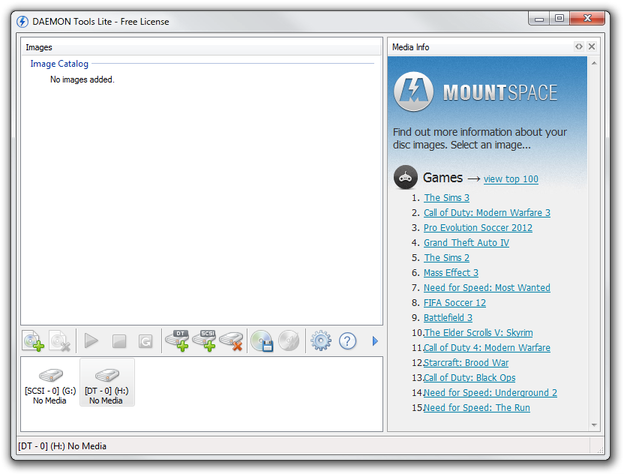
Daemon Tools Lite Image Catalog
Click on Add Image icon (the first icon above virtual mechanics) and select ISO disk image (.iso file extension) from your hard drive. The disk image will be imported to your Image Catalog.
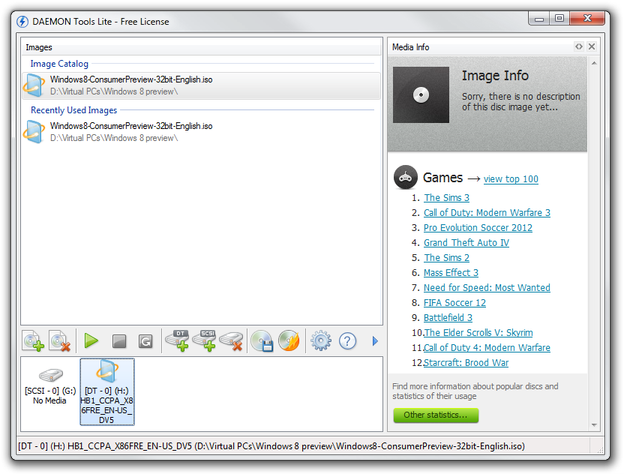
Daemon Tools Lite mounted ISO image
Now double click on image in your catalog and Daemon Tools will open it in virtual optical drive and you are able to manage data stored in ISO image, or install software from them.
Through installation process you can associate Daemon Tools with disk image file formats as the default program to open them. After the installation you will be able to mount disk images in Windows Explorer by double click on them.